> For the complete documentation index, see [llms.txt](https://help.aranet.com/llms.txt). Markdown versions of documentation pages are available by appending `.md` to page URLs; this page is available as [Markdown](https://help.aranet.com/aranet4/aranet4-home/aranet-home-app/fullscreen-display-on-a-smart-tv.md).
# Fullscreen Display on a Smart TV
#### How to display the Aranet Home application data in full-screen mode from iOS Apple devices to Apple TV?
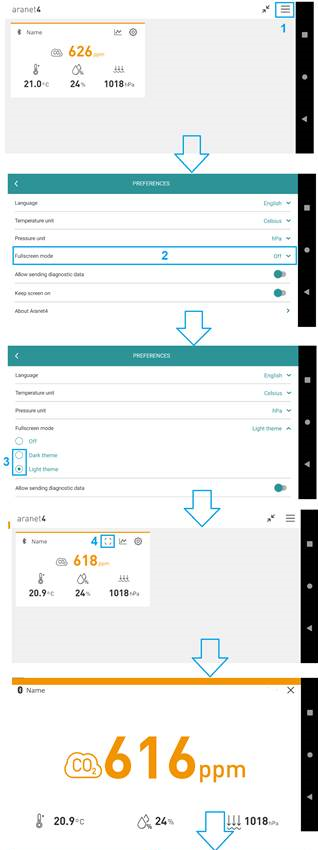
Once the Aranet sensor is paired to the Aranet Home application on the iOS mobile device, you can display the measurement data from the sensor in full-screen mode on the app. This can be done in the following way:
1\. Click on the collapsed menu icon in the top right corner of the application main page;
2\. Click on the section **Fullscreen mode**;
3\. Select **Dark theme** or **Light theme** for the fullscreen mode;
4\. Go back to the application main page and click on the Fullscreen icon;
5\. Rotate the mobile device itself to landscape mode.
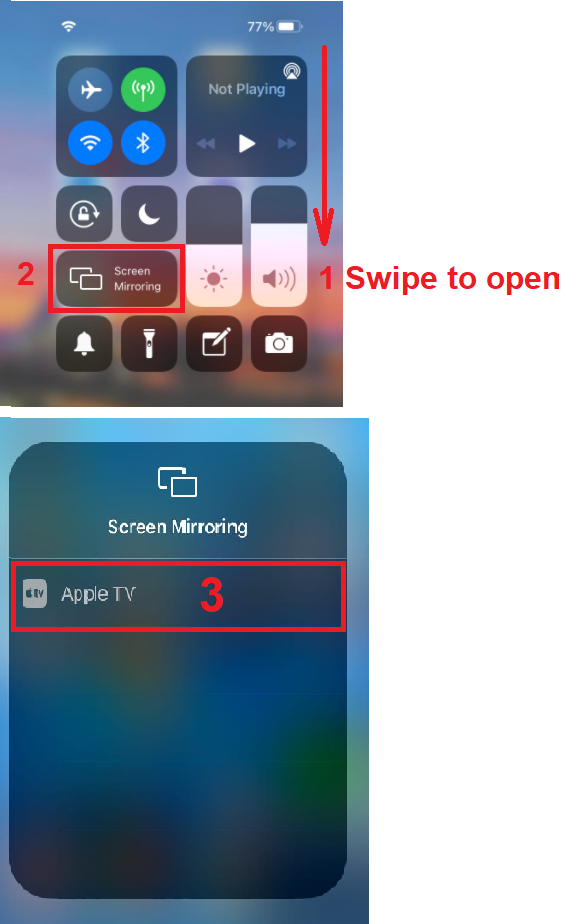
When the app is in fullscreen mode, you can mirror its screen to Apple TV:
6\. Swiping from the top right corner of the mobile device screen opens the iOS Control Centre menu and clicking on the **Screen Mirroring** icon;
7\. Wait for the mobile device to find **Apple TV** and then click on its record to see data from the Aranet4 application on the Apple TV.
#### How to display Aranet Home application data in fullscreen mode from Android devices to Smart TV?
To replicate information from any Android device to a Smart TV, both devices should support Miracast or Screen Mirroring functionality (also called HDMI over Wi-Fi).
If you have both devices compatible with Miracast, then once the Aranet4 sensor is paired to the Aranet4 application on the Android mobile device, you can display the measurement data from the sensor in full-screen mode on the app. This can be done in the following way:
1\. Click on the collapsed menu icon in the top right corner of the application main page;
2\. Click on the section **Fullscreen mode**;
3\. Select **Dark theme** or **Light theme** for the fullscreen mode;
4\. Go back to the application main page and click on the Fullscreen icon;
5\. Rotate the mobile device itself to landscape mode and now You can mirror its screen to Smart TV;
6\. Swiping from the top edge of the mobile device screen open the Android Control Panel, find the **Screen Cast** icon and click on it;
7\. Wait for the mobile device to find the Smart TV and then click on its record to see data from the Aranet4 application on the Smart TV:
---
# Agent Instructions
This documentation is published with GitBook. GitBook is the documentation platform designed so that both humans and AI agents can read, navigate, and reason over technical content effectively. Learn more at gitbook.com.
## Querying This Documentation
If you need additional information that is not directly available in this page, you can query the documentation dynamically by asking a question.
Perform an HTTP GET request on the current page URL with the `ask` query parameter, and the optional `goal` query parameter:
```
GET https://help.aranet.com/aranet4/aranet4-home/aranet-home-app/fullscreen-display-on-a-smart-tv.md?ask=&goal=
```
`ask` is the immediate question: it should be specific, self-contained, and written in natural language.
`goal` is optional and describes the broader end goal you are ultimately trying to accomplish on behalf of the user. GitBook uses it to tailor the answer towards what is most useful for that goal.
The response will contain a direct answer to the question and relevant excerpts and sources from the documentation.
Use this mechanism when the answer is not explicitly present in the current page, you need clarification or additional context, or you want to retrieve related documentation sections.