> For the complete documentation index, see [llms.txt](https://help.aranet.com/llms.txt). Markdown versions of documentation pages are available by appending `.md` to page URLs; this page is available as [Markdown](https://help.aranet.com/aranet-cloud-page/aranet-cloud-landing-page/user-interface-and-core-features/sensors/virtual-sensors/dli-virtual-sensor.md).
# DLI Virtual Sensor
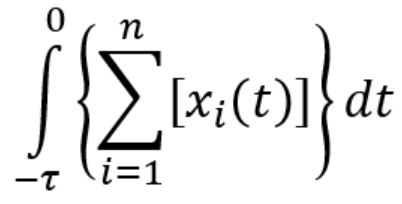
Day Light integral virtual sensor is available for configuration only in case when an workspace has at least one sensor with **PPFD** or **PPFD\_μmol/m²s** metric. The DLI virtual sensor creates one measurement per 24 hours at a specified time. Output value shall be calculated only in cases when at least 90% of input values are available. This will represent the amount of Photosynthetically Active Radiation (PAR) received each day as a function of light intensity and duration. DLI in Aranet Cloud is calculated according to the formula:
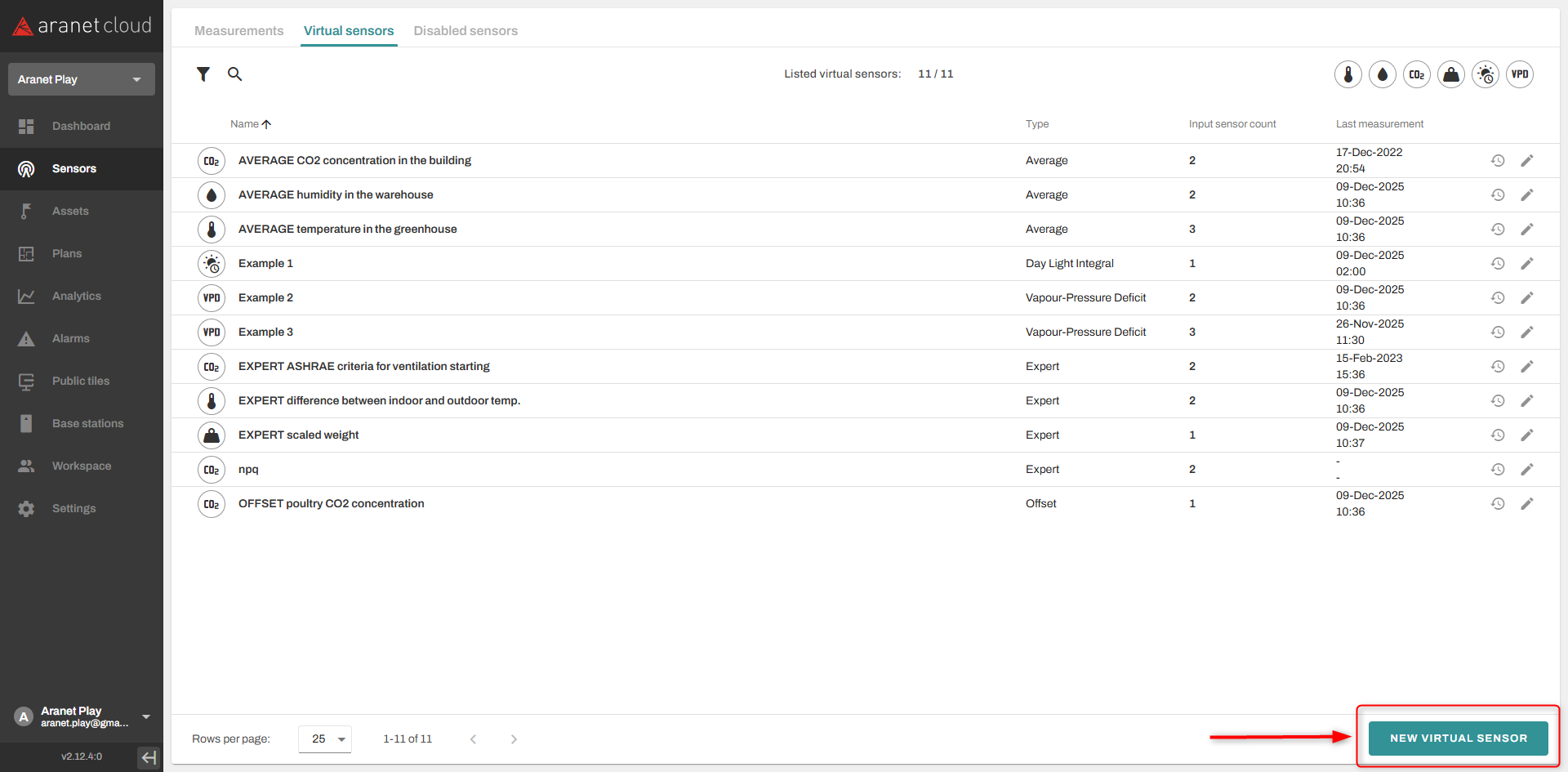
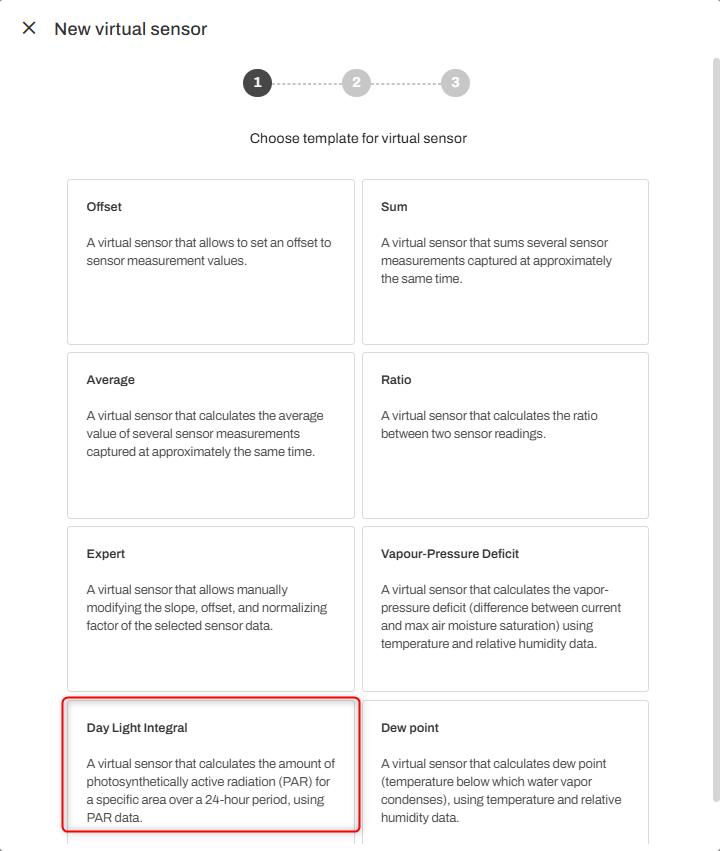
This option can be selected only by having a PAR sensor, and it will be located as the last option when clicking on "New Virtual Sensor". To create a virtual DLI sensor, navigate to the **SENSORS** menu -> **VIRTUAL SENSORS** tab and press the **NEW VIRTUAL SENSOR** button:
Select Day Light Integral sensor:
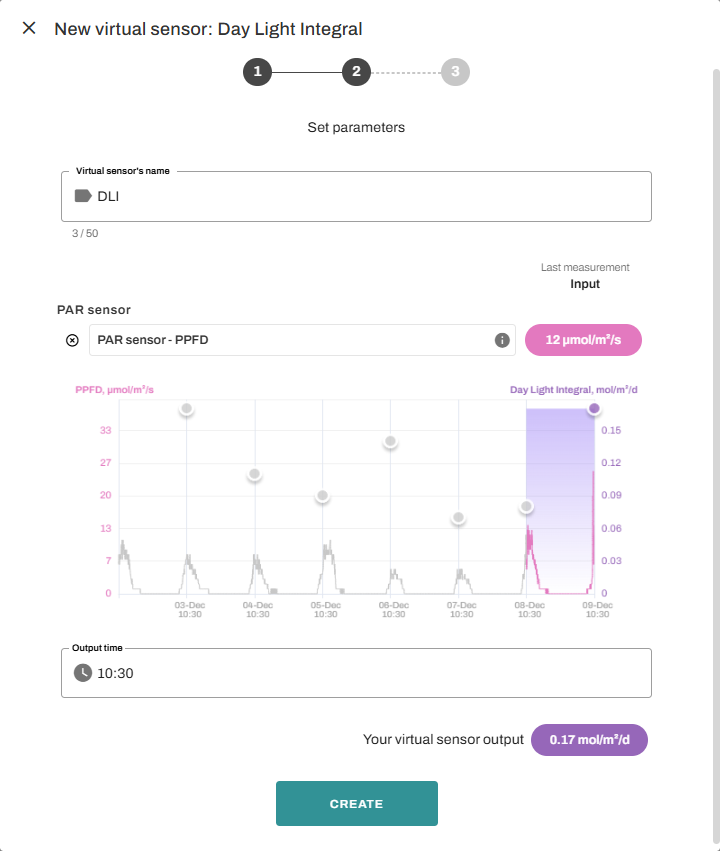
Give the Sensor a name, select the source, define the Output time and press **CREATE** button:
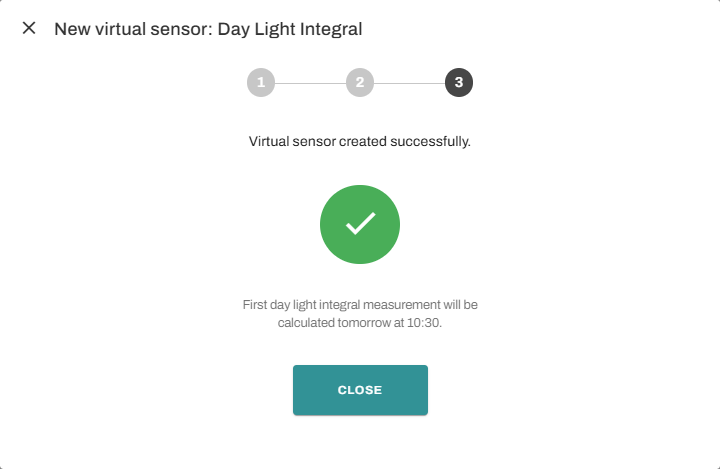
The sensor creation is finished after that:
---
# Agent Instructions
This documentation is published with GitBook. GitBook is the documentation platform designed so that both humans and AI agents can read, navigate, and reason over technical content effectively. Learn more at gitbook.com.
## Querying This Documentation
If you need additional information that is not directly available in this page, you can query the documentation dynamically by asking a question.
Perform an HTTP GET request on the current page URL with the `ask` query parameter, and the optional `goal` query parameter:
```
GET https://help.aranet.com/aranet-cloud-page/aranet-cloud-landing-page/user-interface-and-core-features/sensors/virtual-sensors/dli-virtual-sensor.md?ask=&goal=
```
`ask` is the immediate question: it should be specific, self-contained, and written in natural language.
`goal` is optional and describes the broader end goal you are ultimately trying to accomplish on behalf of the user. GitBook uses it to tailor the answer towards what is most useful for that goal.
The response will contain a direct answer to the question and relevant excerpts and sources from the documentation.
Use this mechanism when the answer is not explicitly present in the current page, you need clarification or additional context, or you want to retrieve related documentation sections.