> For the complete documentation index, see [llms.txt](https://help.aranet.com/llms.txt). Markdown versions of documentation pages are available by appending `.md` to page URLs; this page is available as [Markdown](https://help.aranet.com/aranet-cloud-page/aranet-cloud-landing-page/user-interface-and-core-features/floor-plans.md).
# Floor Plans
Plan is an analytical tool that allows to visualize sensor data on a user-selected image - either a floor plan, a map, or any picture that describes sensor placement in your environment.
All Aranet Cloud workspace members with "**Plans**" ***read*** permission can access the Plans. ***Write*** permission must be granted to the Aranet Cloud Workspace member for the ability to manage plans:
Floor plans in Aranet Cloud are created under **PLANS** tab:
Before creating a plan in Aranet Cloud, prepare the image(s) you are going to use as the plan's background. Raster images in **.jpg** or **.png** formats, max **16000 x 16000** px, max **20 MB** can be uploaded.
Press **CREATE PLAN** button to start. A new pop-up window will open where you can give the plan a **Name**, upload an **image**, enter a **Description,** and select the **Location** to which the plan belongs:
When finished, press **CREATE** button.
After the time needed for image processing new window will open:
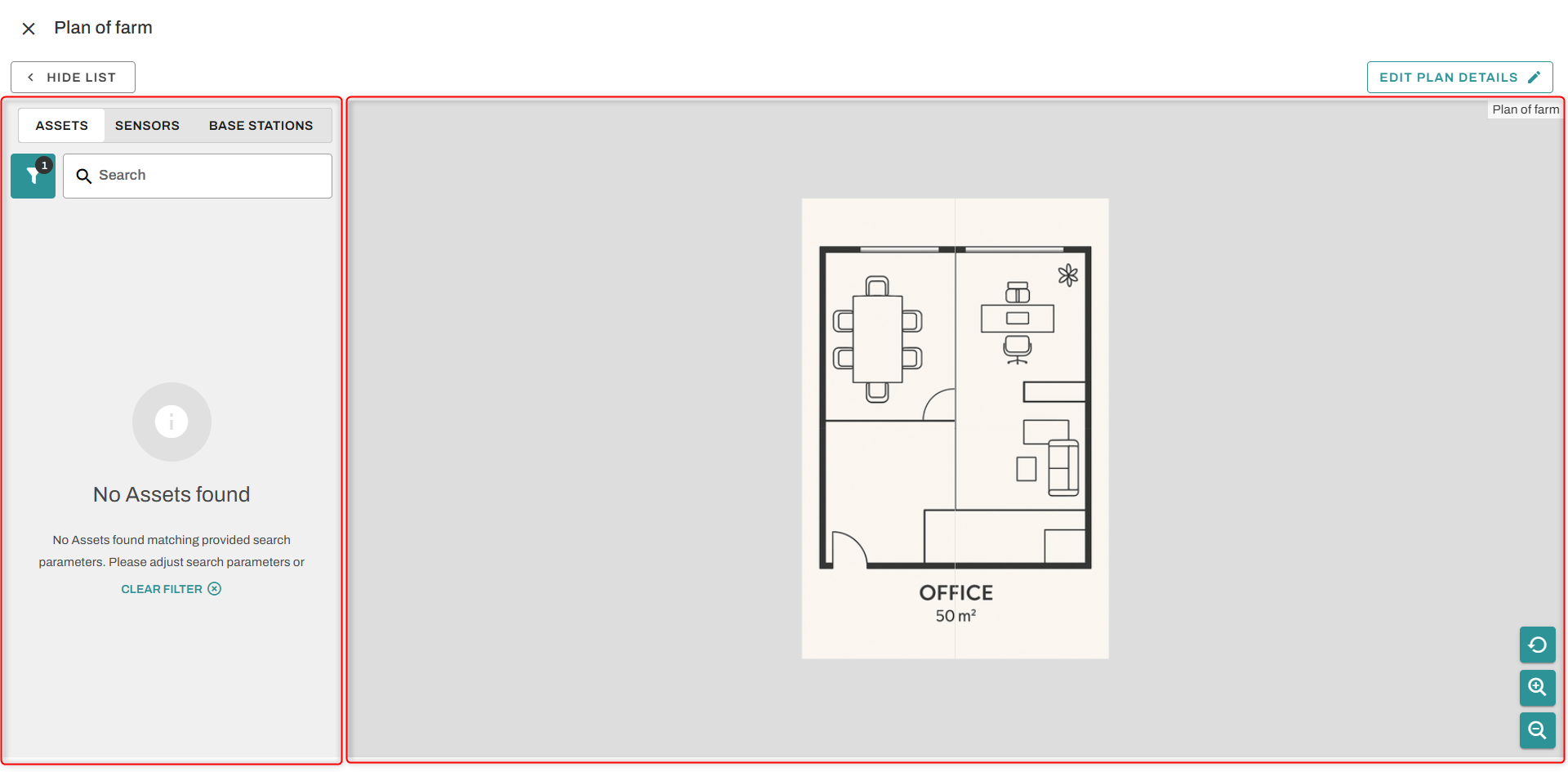
On the left side of the window, there is a list of **Objects** which you can place on the plan. The **Plan** manipulation view is on the right side: you can zoom in and out of the view for more precise object placement.
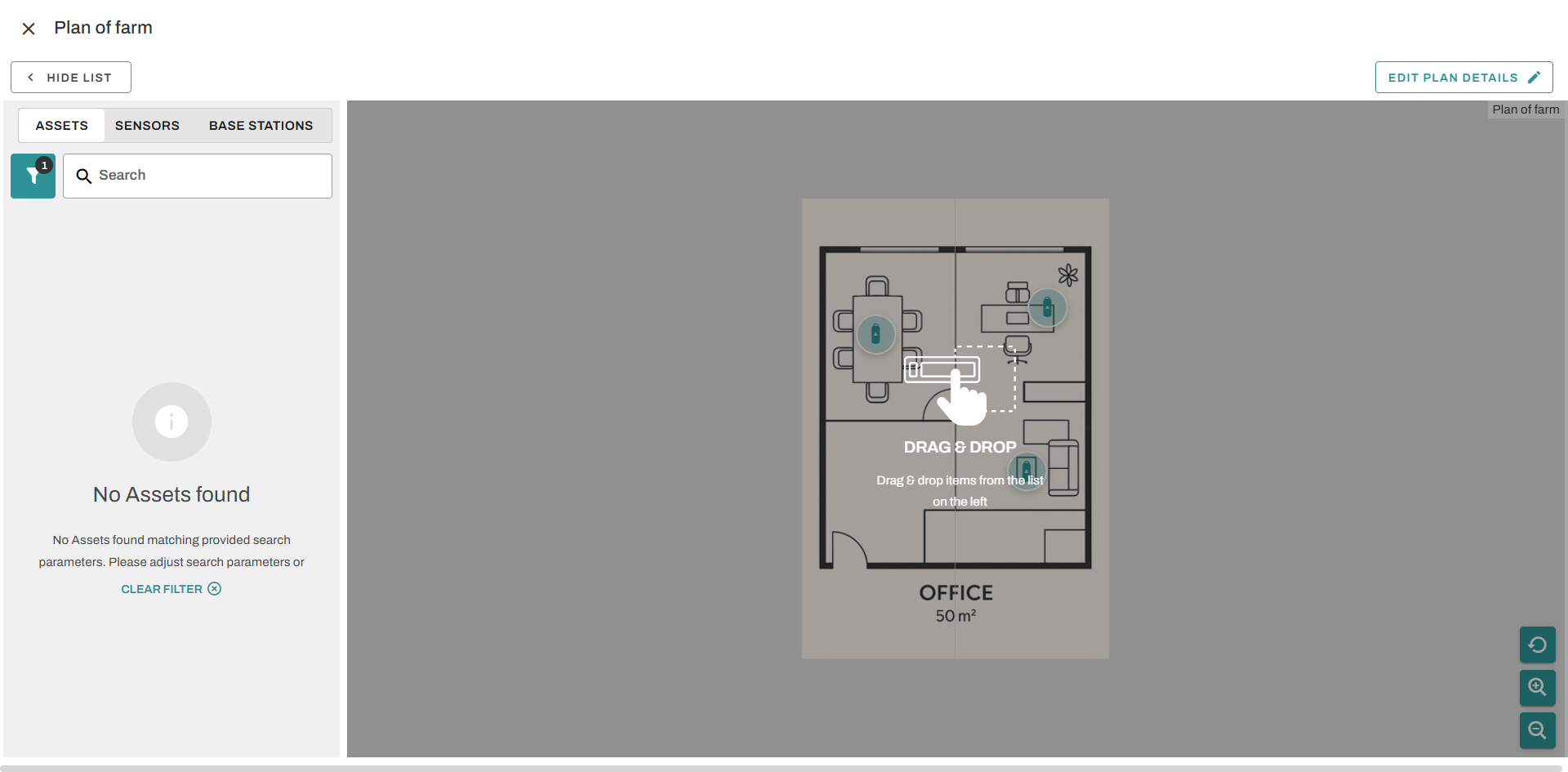
Objects are filtered already by the Location chosen in the previous step. Select the objects - **ASSETS**, **SENSORS,** and **BASES** from the list and drag and drop them on the plan:
One sensor can be placed on several plans as well as one sensor can be placed on one plan several times.
Adjust placement with greater zoom if needed. If you hover your mouse over the object, its information and current sensor measurements are displayed:
If you click on the object, its icon properties window opens:
You can select the shape of the icon and the metric displayed on it, as well as delete the object from the plan.
Close the plan editing window when finished placing objects. You will be returned to **SETTINGS** menu. Now the **PLANS** tab displays all created plans with information about the number of:
* Sensors
* Bases
* Assets placed in the plan
As well as allow their editing.
Created Floor Plans are accessible under the **PLANS** menu **VIEW** tab:
Click on:
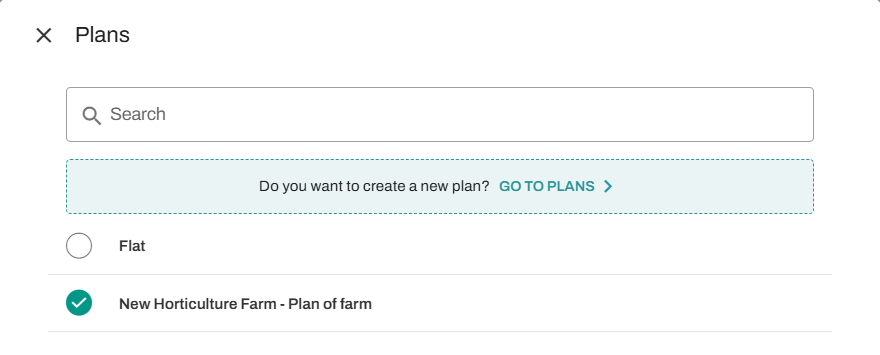
**1)** button to switch between active plans
**2)** pencil button to edit the current plan
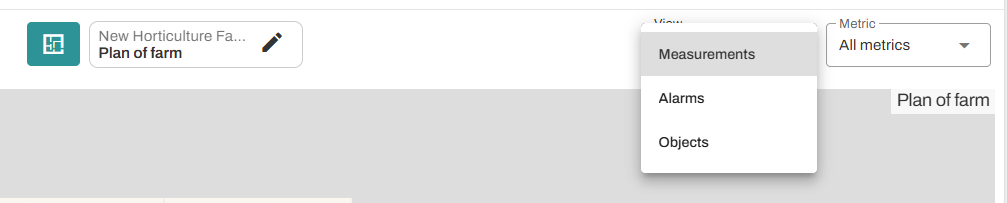
**3)** drop-down list to switch between layers displayed
**4)** drop-down list to select the metrics displayed: only sensors with the chosen metric (selected during object configuration, as shown in object properties above) will be displayed.
Fast access to all object properties is possible by clicking on the object icon, and in the sensor's card, you can see plans assigned to the sensor and the base station it is paired to:
---
# Agent Instructions
This documentation is published with GitBook. GitBook is the documentation platform designed so that both humans and AI agents can read, navigate, and reason over technical content effectively. Learn more at gitbook.com.
## Querying This Documentation
If you need additional information that is not directly available in this page, you can query the documentation dynamically by asking a question.
Perform an HTTP GET request on the current page URL with the `ask` query parameter, and the optional `goal` query parameter:
```
GET https://help.aranet.com/aranet-cloud-page/aranet-cloud-landing-page/user-interface-and-core-features/floor-plans.md?ask=&goal=
```
`ask` is the immediate question: it should be specific, self-contained, and written in natural language.
`goal` is optional and describes the broader end goal you are ultimately trying to accomplish on behalf of the user. GitBook uses it to tailor the answer towards what is most useful for that goal.
The response will contain a direct answer to the question and relevant excerpts and sources from the documentation.
Use this mechanism when the answer is not explicitly present in the current page, you need clarification or additional context, or you want to retrieve related documentation sections.