> For the complete documentation index, see [llms.txt](https://help.aranet.com/llms.txt). Markdown versions of documentation pages are available by appending `.md` to page URLs; this page is available as [Markdown](https://help.aranet.com/aranet-cloud-page/aranet-cloud-landing-page/user-interface-and-core-features/analytics/heatmap.md).
# Heatmap
You can use Heatmaps to better illustrate your data.
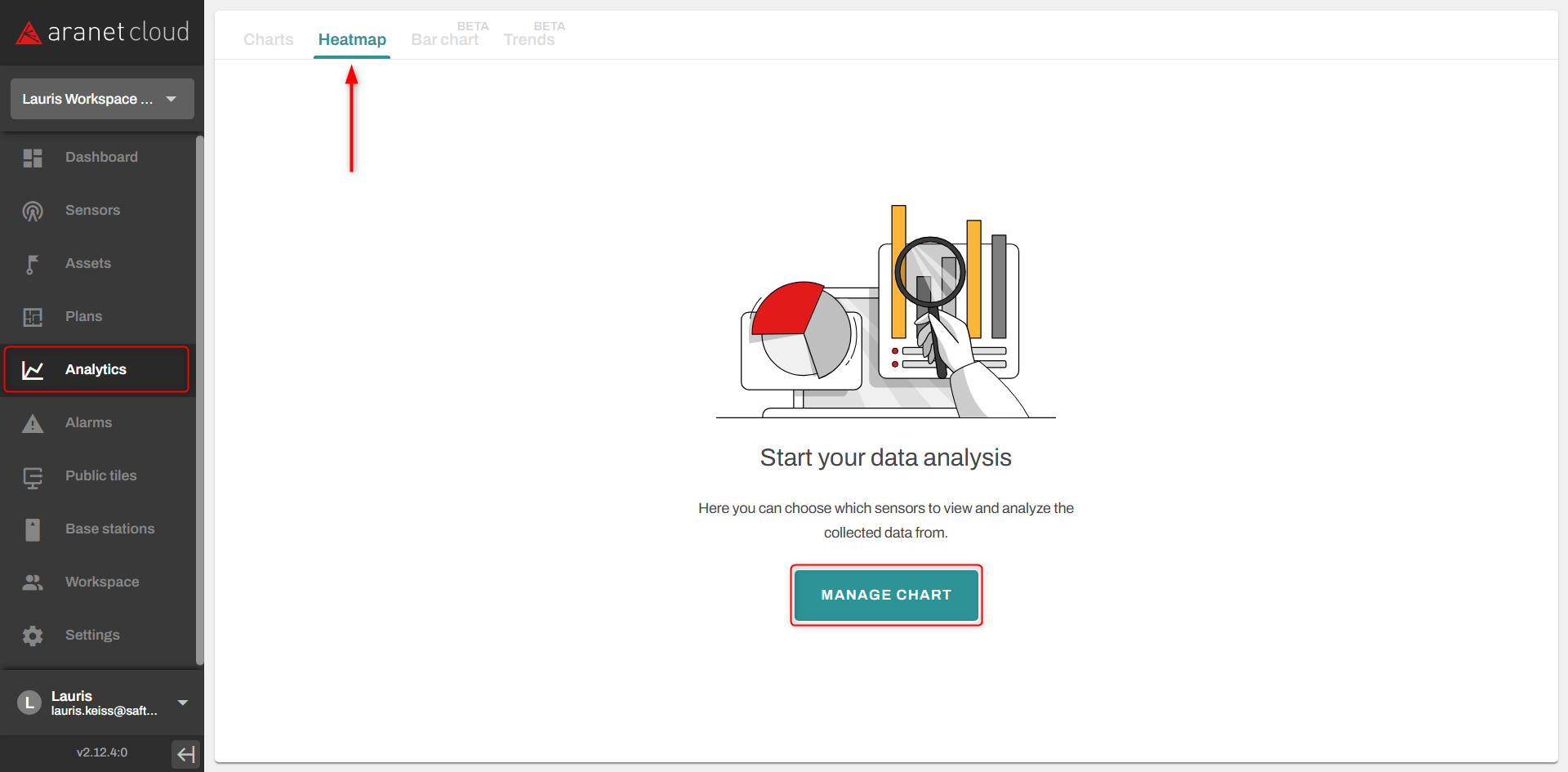
First, go to the Heatmap page.\
Go to Analytics, Heatmap and click on Manage chart
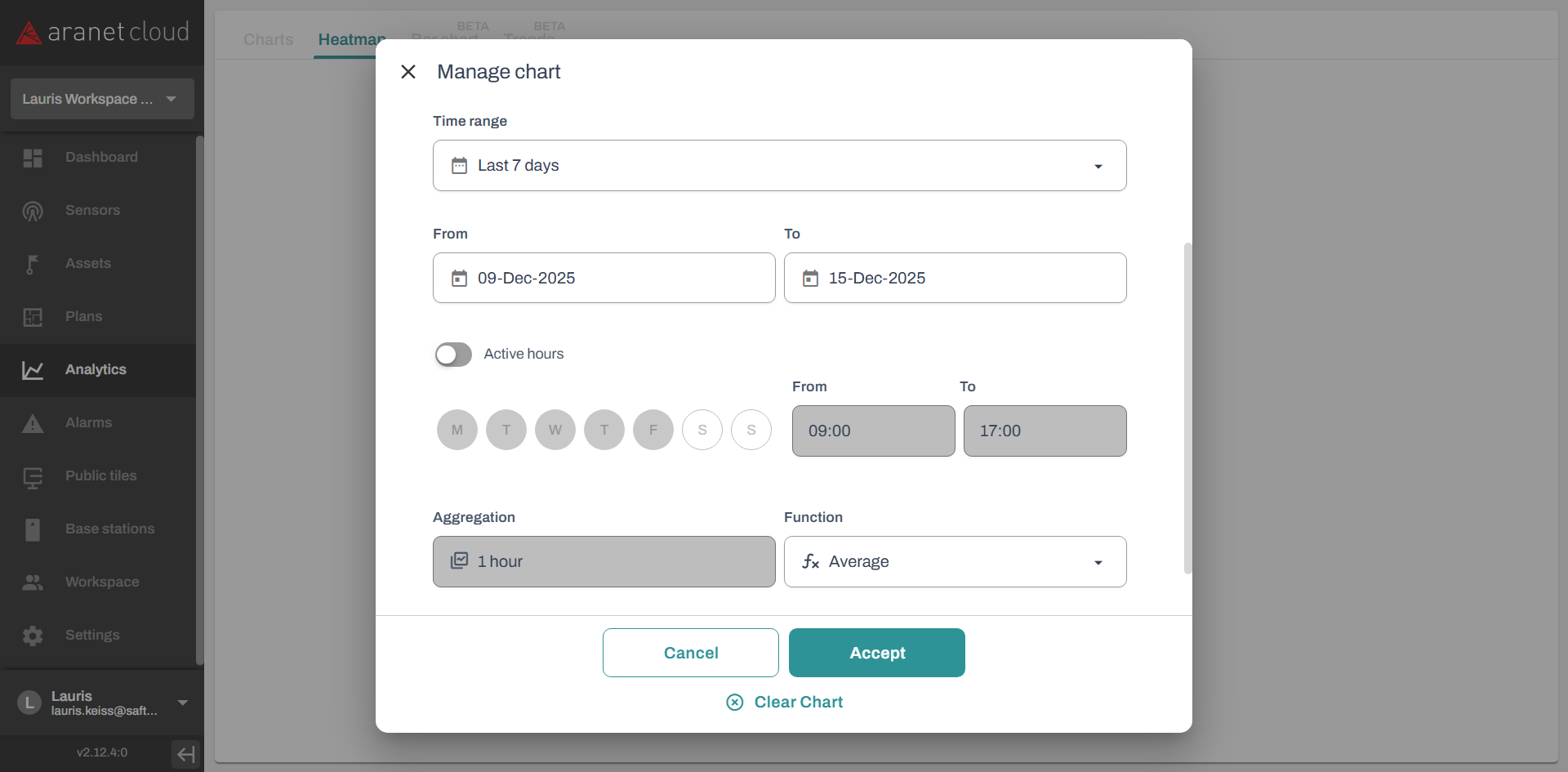
You should be greeted by the following screen:
Where:\
1\. You can select the desired metric of measurements\
2\. From which sensor should the metric be selected\
3\. The time range the data will be taken. This week, last week, last 7 days, or custom\
4\. If custom, then edit the dates here. Only a maximum of 7 days is currently available.\
5\. Active hours. allows you to select the active hours to make sure you are displaying only relevant data.\
6\. Aggregation time, currently, only one hour is available\
7\. Chooses the function, between average, min, and max (Total if energy in kWh is selected).\
8\. Accepts and saves the configuration\
9\. Cancels the edit
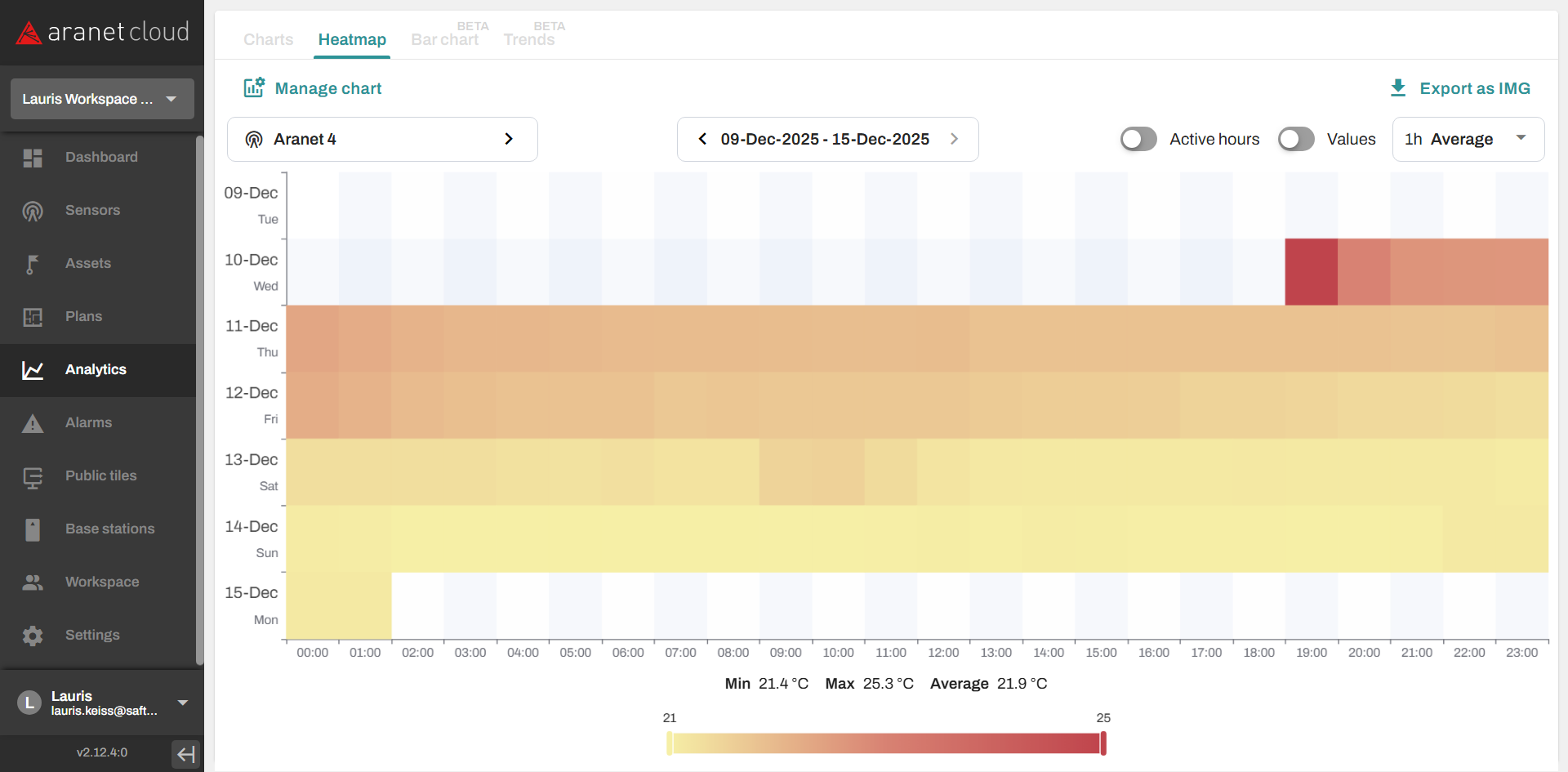
When you are done with the setup, you will be able to see the heatmap itself:
1\. Opens the edit chart page, allowing you to change the options.\
2\. Allows you to quickly change the sensor being looked at.\
3\. Enables the showing of values on the heatmap blocks\
4\. Allows you to export the heatmap as an image\
5\. Allows you to change from average, min, or max values shown. (Total if energy in kWh is selected)\
6\. By hovering the mouse over any block, additional info can be found, like the time and exact metric.\
7\. It allows one to quickly look at specific values and set the min or max values to show on the heatmap.
If an energy meter is selected, selecting Total in the function field allows you to see your energy consumption by day.
---
# Agent Instructions
This documentation is published with GitBook. GitBook is the documentation platform designed so that both humans and AI agents can read, navigate, and reason over technical content effectively. Learn more at gitbook.com.
## Querying This Documentation
If you need additional information that is not directly available in this page, you can query the documentation dynamically by asking a question.
Perform an HTTP GET request on the current page URL with the `ask` query parameter, and the optional `goal` query parameter:
```
GET https://help.aranet.com/aranet-cloud-page/aranet-cloud-landing-page/user-interface-and-core-features/analytics/heatmap.md?ask=&goal=
```
`ask` is the immediate question: it should be specific, self-contained, and written in natural language.
`goal` is optional and describes the broader end goal you are ultimately trying to accomplish on behalf of the user. GitBook uses it to tailor the answer towards what is most useful for that goal.
The response will contain a direct answer to the question and relevant excerpts and sources from the documentation.
Use this mechanism when the answer is not explicitly present in the current page, you need clarification or additional context, or you want to retrieve related documentation sections.