> For the complete documentation index, see [llms.txt](https://help.aranet.com/llms.txt). Markdown versions of documentation pages are available by appending `.md` to page URLs; this page is available as [Markdown](https://help.aranet.com/aranet-cloud-page/aranet-cloud-landing-page/user-interface-and-core-features/alarms/notifications-triggered-alarm.md).
# Notifications - Triggered Alarm
#### Notifying yourself
It is possible to get notifications from Aranet Cloud. Alarm notifications are being sent after they were triggered and excedded delay time. Delay time is meant for not triggering the alarm for a specific time (5 - 60 minutes).
To trigger an alarm, you need to have a rule. There is a topic related to all the necessary information about rules: [Rules](/aranet-cloud-page/aranet-cloud-landing-page/user-interface-and-core-features/alarms/rules.md)
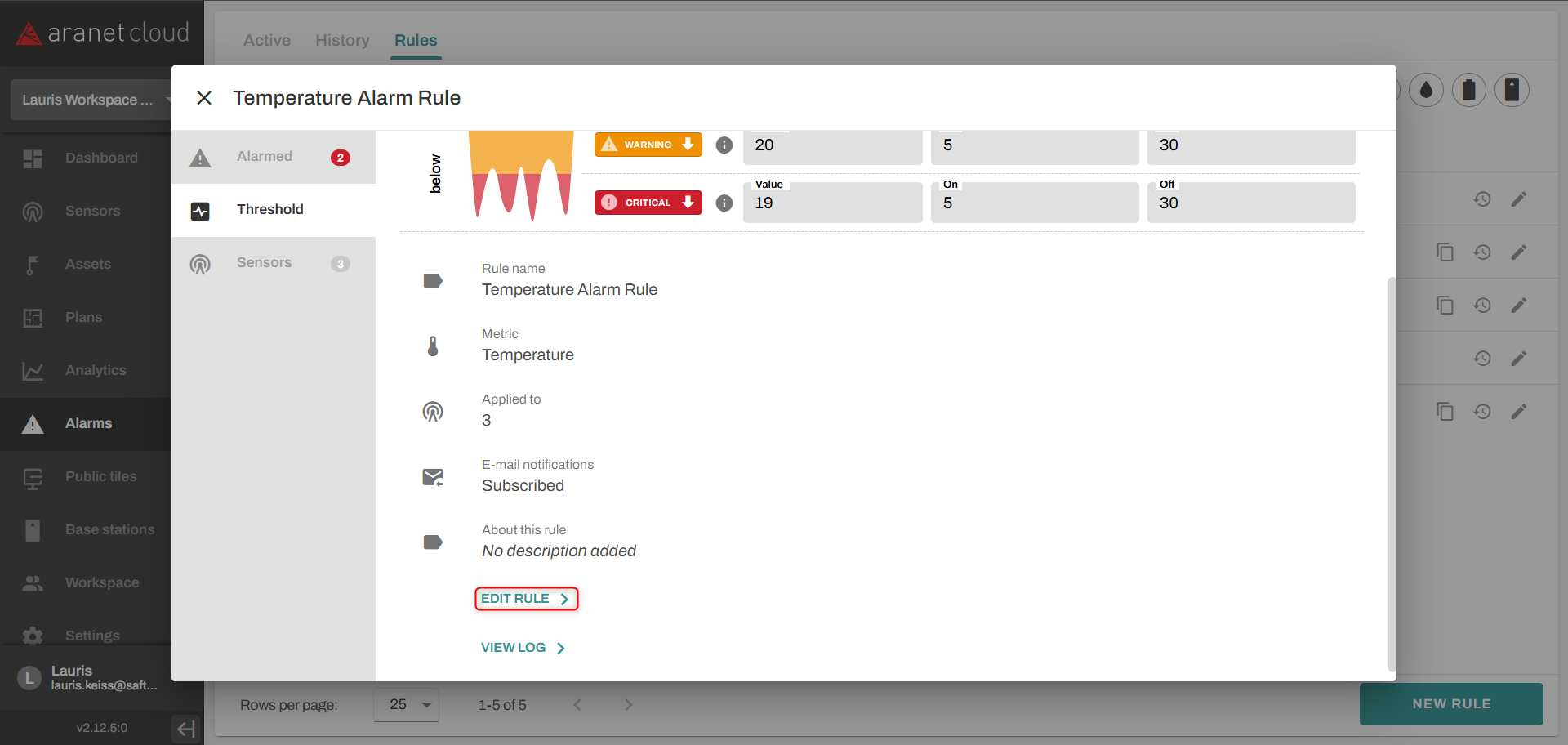
After you have created the rule, you need to click on the freshly created rule, and then EDIT RULE button. And a new pop-up window will appear.
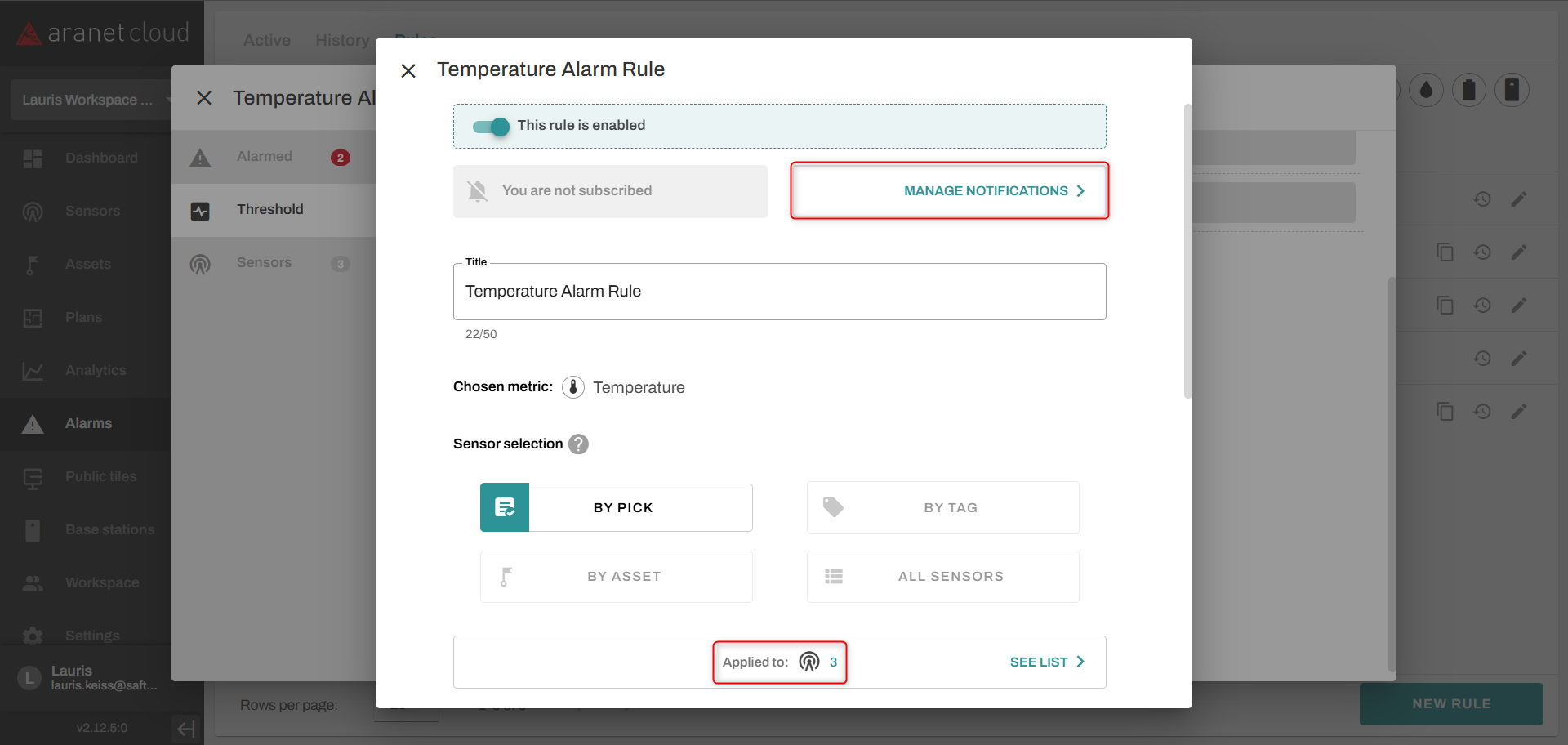
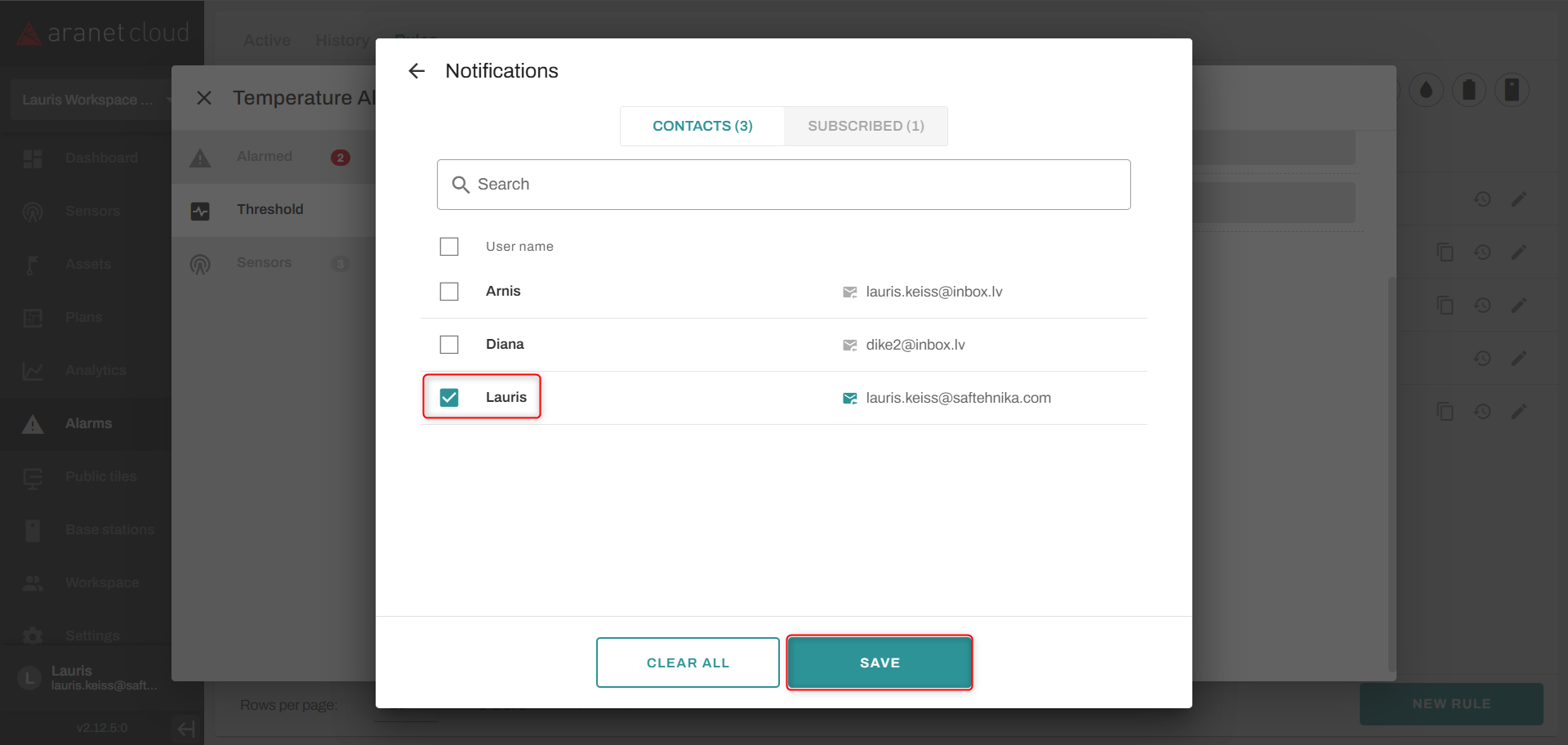
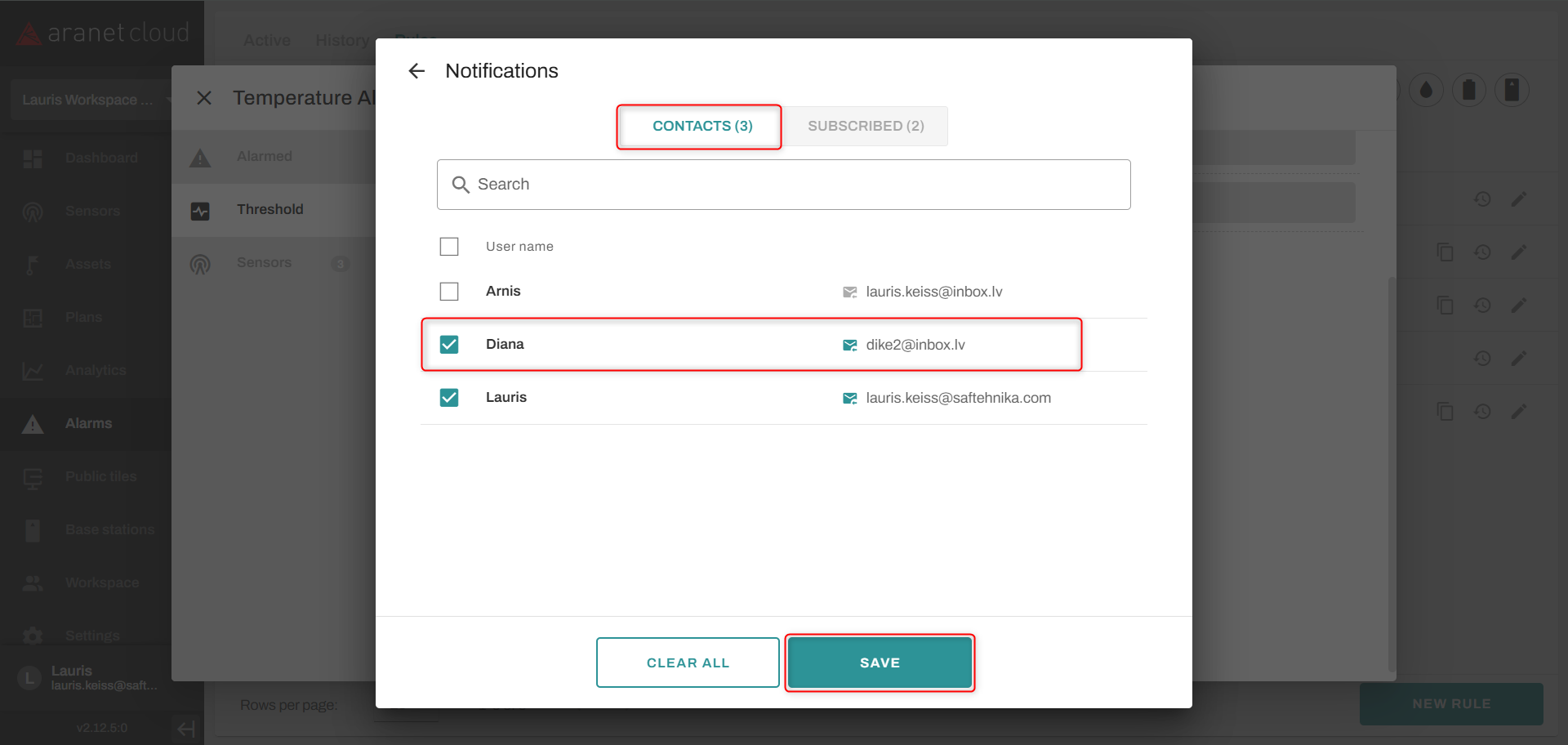
Then you need to make sure that the rule is enabled and sensors are added. Under the button, which enables the rule, you will find the MANAGE NOTIFICATIONS button, which you need to click on. Find your Workspace user, tick the box, and click the SAVE button.
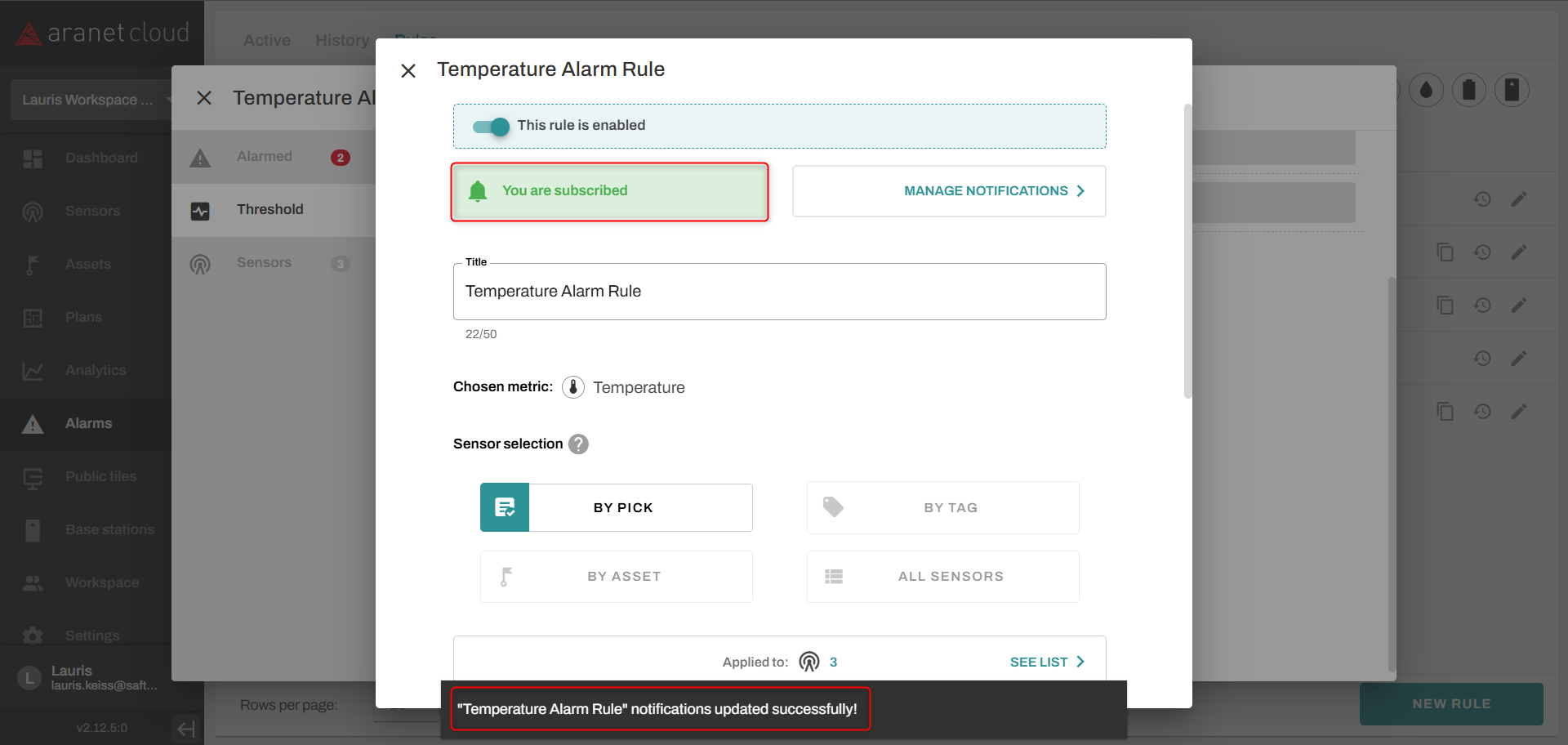
After you have configured and clicked the SAVE button, the box that is next to the MANAGE NOTIFICATIONS button will turn green, and the message "You are subscribed" will be displayed, same as ""\" notifications updated successfully!", which means you are all set.
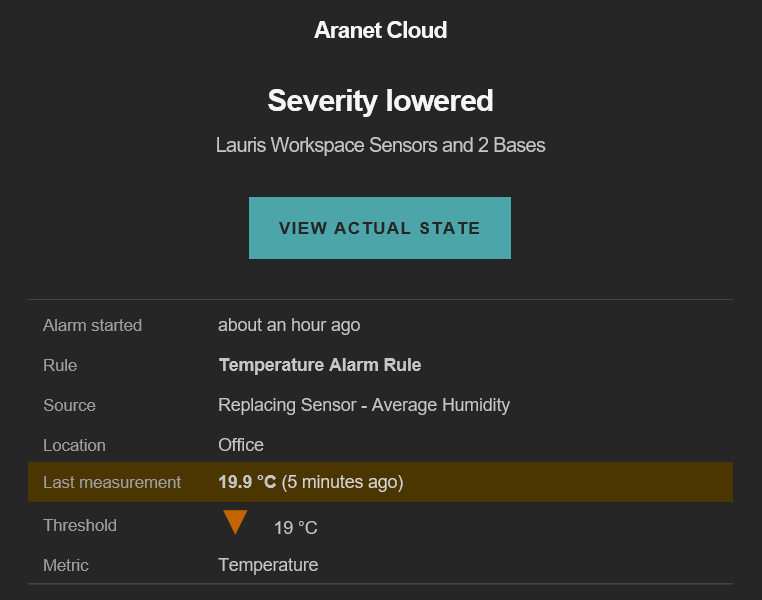
Now, when the exact alarm is triggered and the delay time is exceeded, and the alarm still remains, you will get notifcation to your e-mail address from , which will notify you that there is an active Alarm, and when the alarm is resolved, you will be notified too.
Here is a picture of an email, which you might get:
#### Notifying multiple accounts
You can turn on notifications for multiple accounts related to the same rule.
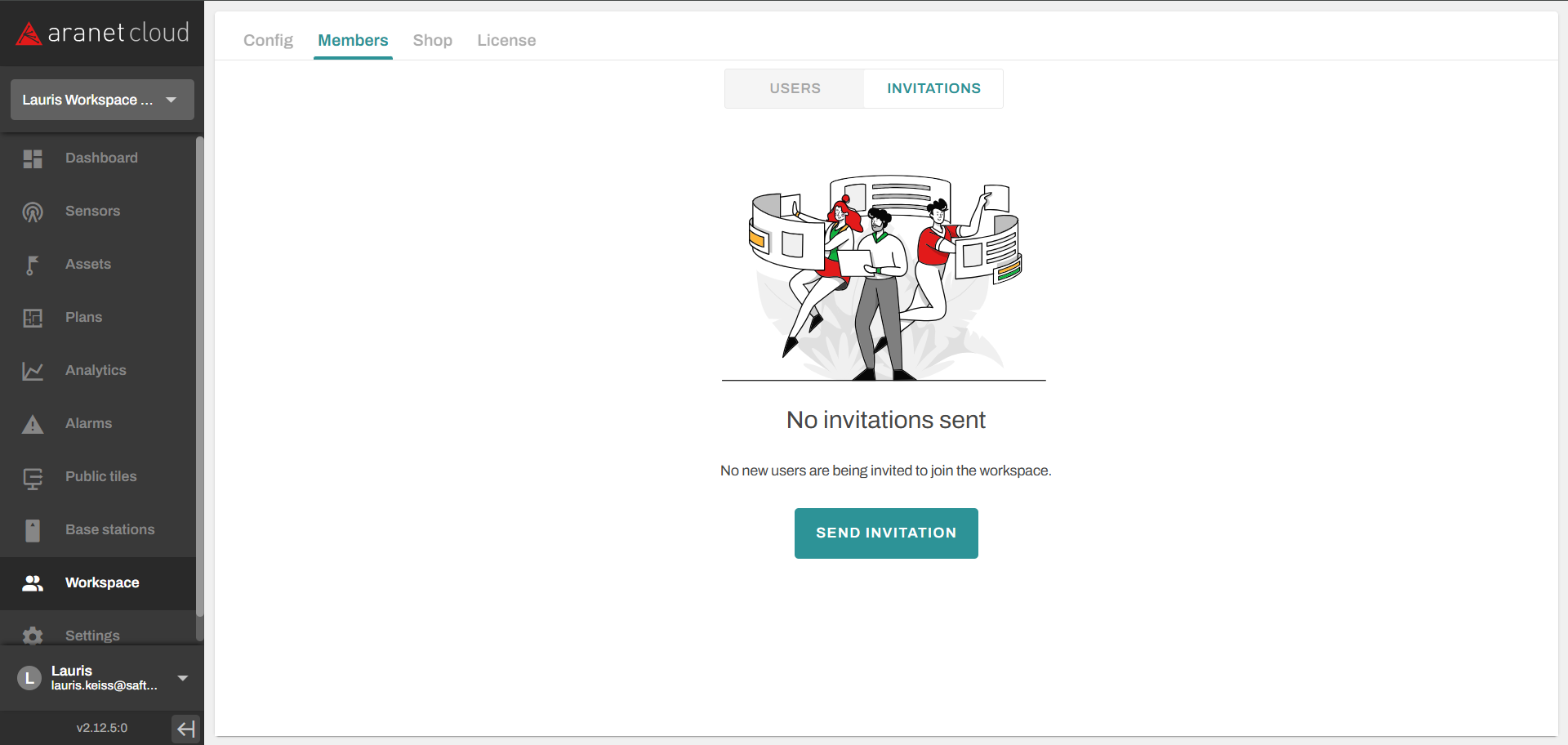
For that, go to your main account. Then head to Workspace -> Members tab and click on Invitation.
You will screen like this:
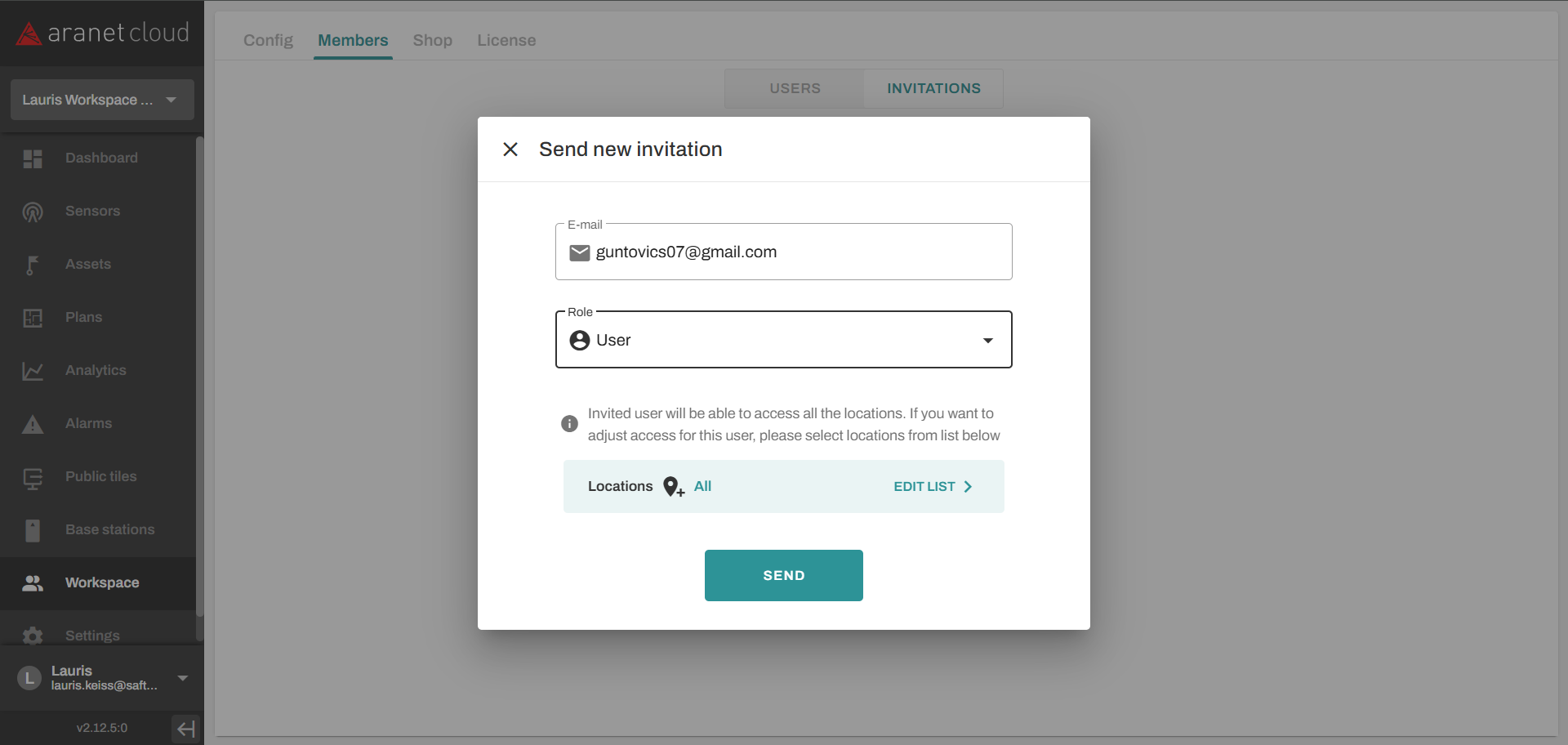
Click on SEND INVITATION for a new pop-up window to appear. Write the email of the user that you would like to add to your Workspace's members list; you can also specify the role of the User, that you are inviting.
As soon as you have done it, click on the SEND button, and the recipient should receive an email with the invitation.
**If the user has already created an Aranet Cloud account**, then they should accept the invitation and log in to their account. That will be it, after this procedure, they will appear in the members list.
**If the user hasn't already created an account**, after clicking on the JOIN button in the email, they will get a new button (REGISTER). After pressing it, the user will be redirected to the creation page. By completing creation and logging in, the user will appear in the member list.
After the user has appeared, you can head to Alarms -> Rules tab, then click on the same alarm, and perform the same actions (EDIT RULE -> MANAGE NOTIFICATIONS).
As soon as you have completed the procedure, click on the SAVE button, and the newly added user will receive a notification after the alarm is triggered and the delay has exceeded.
You can perform this with multiple users.
---
# Agent Instructions
This documentation is published with GitBook. GitBook is the documentation platform designed so that both humans and AI agents can read, navigate, and reason over technical content effectively. Learn more at gitbook.com.
## Querying This Documentation
If you need additional information that is not directly available in this page, you can query the documentation dynamically by asking a question.
Perform an HTTP GET request on the current page URL with the `ask` query parameter, and the optional `goal` query parameter:
```
GET https://help.aranet.com/aranet-cloud-page/aranet-cloud-landing-page/user-interface-and-core-features/alarms/notifications-triggered-alarm.md?ask=&goal=
```
`ask` is the immediate question: it should be specific, self-contained, and written in natural language.
`goal` is optional and describes the broader end goal you are ultimately trying to accomplish on behalf of the user. GitBook uses it to tailor the answer towards what is most useful for that goal.
The response will contain a direct answer to the question and relevant excerpts and sources from the documentation.
Use this mechanism when the answer is not explicitly present in the current page, you need clarification or additional context, or you want to retrieve related documentation sections.