> For the complete documentation index, see [llms.txt](https://help.aranet.com/llms.txt). Markdown versions of documentation pages are available by appending `.md` to page URLs; this page is available as [Markdown](https://help.aranet.com/aranet-cloud-page/aranet-cloud-landing-page/integrations-and-extensions/cloud-api/push-type-integration.md).
# Push Type Integration
Aranet Cloud platform allows send-out of sensor metrics data from its workspaces in SenML+JSON or 30MHz format via push type integration API to any 3rd party system endpoint (server, computer, another Cloud platform etc.) which is capable of receiving such files.
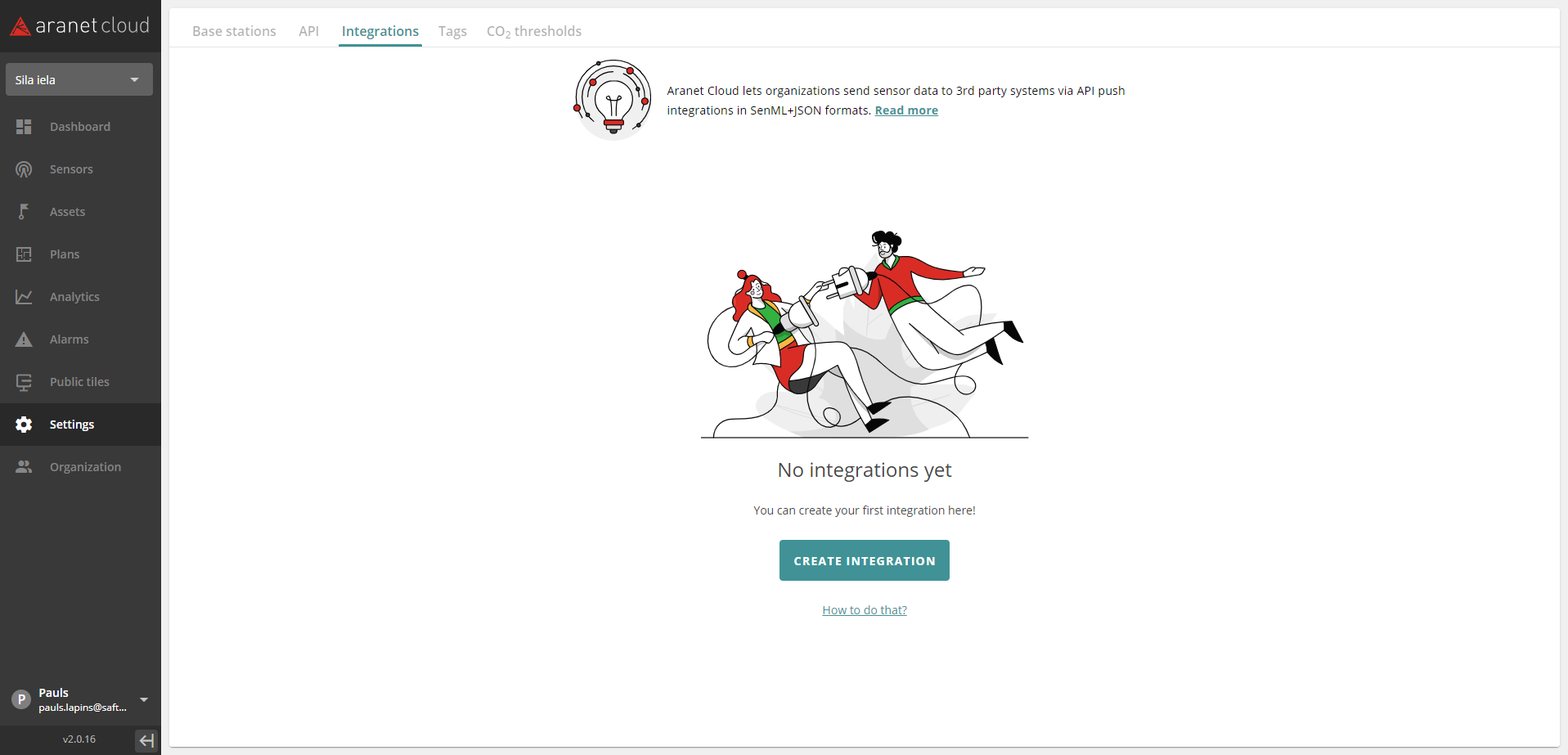
Configuration of this API can be done from **INTEGRATIONS** tab in **SETTINGS** section:
#### New integration
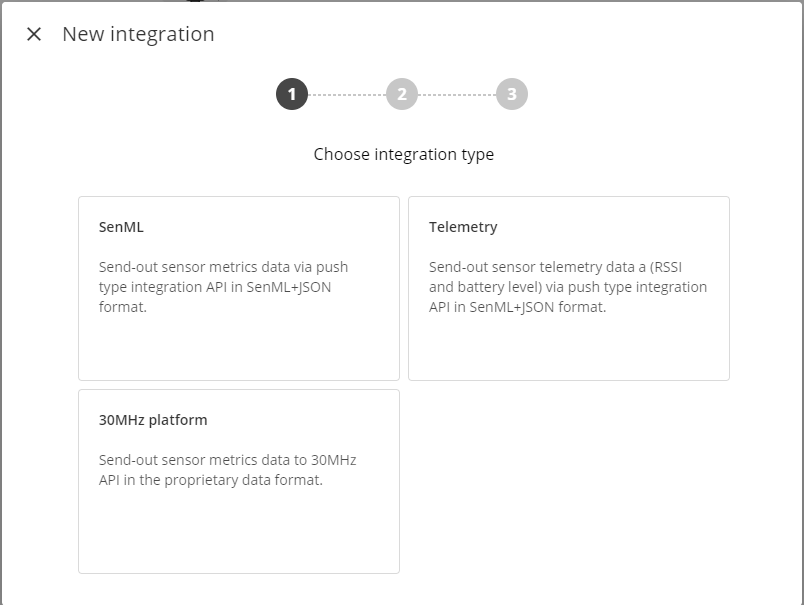
Clicking on “**CREATE INTEGRATION**” opens new pop-up window where choosing the desired integration can be made:
**Type** – allows selecting what sensor metric data and in what format will be sent out from the Aranet Cloud platform to a third-party system:
1. **SenML** – allows specifying that all sensor ***metric data*** (excluding RSSI and battery level telemetry data) will be sent out from Aranet Cloud in SenML+JSON format;
2. **Telemetry** – allows specifying that ***only sensor telemetry data*** (RSSI and battery level) will be sent out from Aranet Cloud in SenML+JSON format;
3. **30MHz -** sends out sensor metrics data to 30MHz platform in the proprietary data format
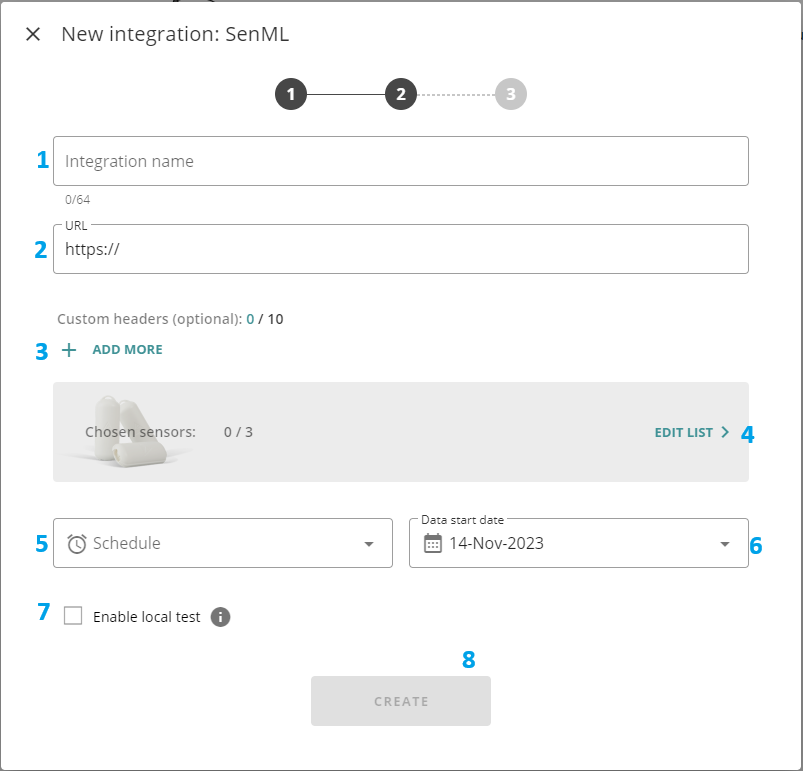
1. **Integration name -** allows assigning a visible name for the new integration;
2. **URL** – allows specifying the web address for the endpoint of the 3rd party system (server), which can receive JSON files from the Aranet Cloud platform. The current version of Aranet Cloud supports data transmissions only to ports 80 and 443 on the external third-party system.
3. **Custom headers** - Allows the creation of custom headers for values
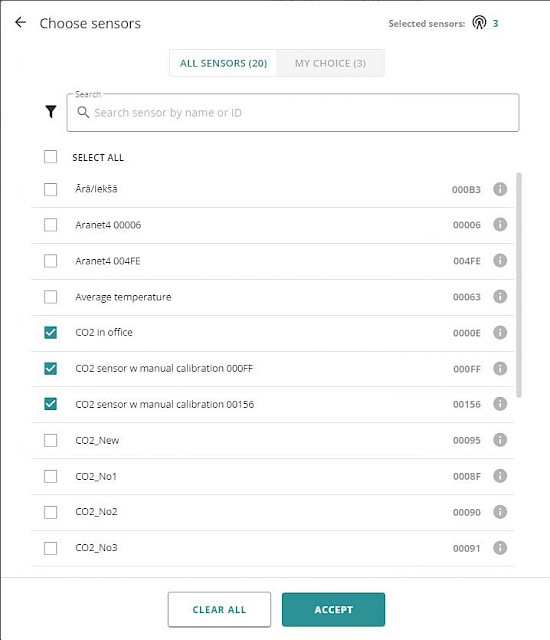
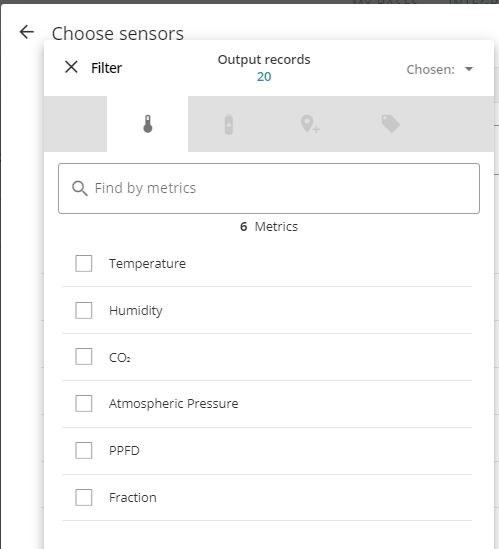
4. **Sensors** – opens a new pop-up window where you can specify sensors from the Cloud workspace, and which metric data will be sent out from Aranet Cloud. Sensors here can be filtered and then selected by their paired Bases, Sensor types, and tags (if used):
5. **Schedule** – allows specifying how often Aranet Cloud will send data files to the external 3rd-party system**.** When integration is enabled and running, each new data transmission from Aranet Cloud will include sensor metric data that has been gathered on the Cloud workspace after the previous data send-out. The exception here is the initial historic data send-out that can happen over multiple consecutive data transmissions until the latest data has been dispatched.\
Here user can also enter a valid CRON query specifying a custom data send-out schedule (examples of possible CRON schedule expression configurations are available: ).
6. **Data start date** – allows specifying the date starting from which historic sensor metric data will be sent from Aranet Cloud to the external 3rd party system. Aranet Cloud will use this date to identify how old historical data shall be included in the first send-out.
7. **Enable local test** – allows enabling of the test mode for the integration. If this box is checked, then the Aranet Cloud platform will not send data out to the external 3rd party system, but integration data files will be prepared and saved locally on the Aranet Cloud workspace. Such files the user can later open and check from the corresponding Aranet Cloud integration configuration.
8. **Create** - Creates the integration
#### **Sensors**
Sensors can be filtered by **Metrics**, **Types**, **Locations** and **Tags**:
#### **30MHz**
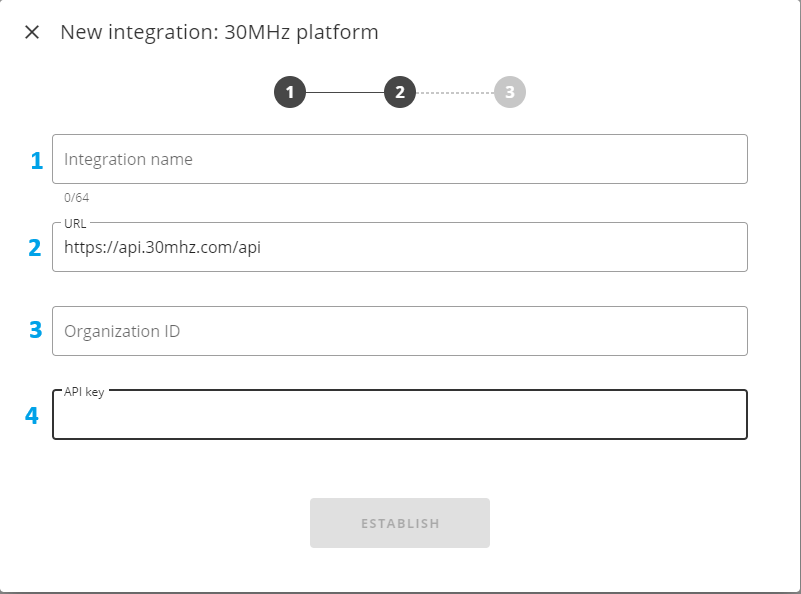
30MHz integration is characterised by 30MHz organisation, API key, and Location. There is a set of supported sensors for the integration. If the user has multiple locations, the user must create an integration for each location.
1. **Integration name -** allows assigning a visible name for the new integration;
2. **URL** – allows specifying the web address for the endpoint of the 30MHz integration
3. **Organization ID -** 30MHz Organization ID
4. **API key** – allows specifying a unique identifier (key) for the authentication of the data exchange between Aranet Cloud and the external 3rd party system. The API key must be provided by the external 3rd-party system (30 MHz). If no authentication is required from the external 3rd party system, then this field can be left blank.
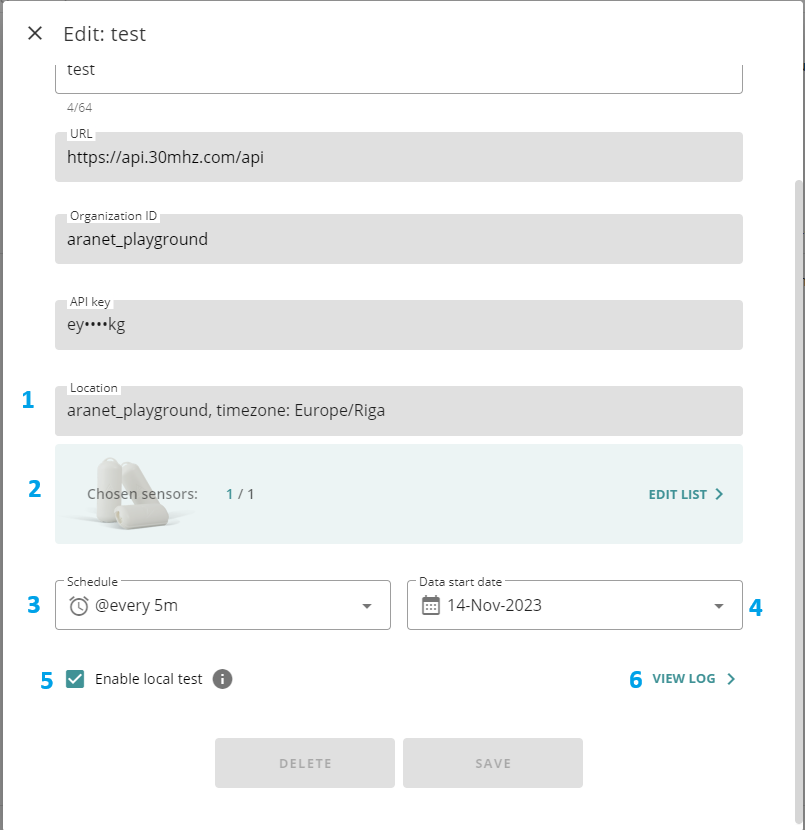
Afterwards, more fields appear if a successful connection is made.
1. **Location -** choose the location of your organization a drop-down field with available time zones will appear if the information is available to the server.
2. **Sensors** – opens a new pop-up window where you can specify sensors from the Cloud workspace which metric data will be sent out from Aranet Cloud. Sensors here can be filtered and then selected by their paired Bases, Sensor types, and tags (if used):
3. **Schedule** – allows specifying how often Aranet Cloud will send data files to the external 3rd party system**.** When integration is enabled and running, each new data transmission from Aranet Cloud will include sensor metric data that has been gathered on the Cloud workspace after the previous data send-out. The exception here is the initial historic data send-out that can happen over multiple consecutive data transmissions until the latest data has been dispatched.\
Here user can also enter a valid CRON query specifying a custom data send-out schedule (examples of possible CRON schedule expression configurations are available: ).
4. **Data start date** – allows specifying the date from which historic sensor metric data will be sent from Aranet Cloud to the external 3rd party system. Aranet Cloud will use this date to identify how old historical data shall be included in the first send-out.
5. **Enable local test** – allows enabling of the test mode for the integration. If this box is checked, then the Aranet Cloud platform will not send data out to the external 3rd party system, but integration data files will be prepared and saved locally on the Aranet Cloud workspace. Such files the user can later open and check from the corresponding Aranet Cloud integration configuration.
6. **View Log -** Opens the log window, more information in the post below
#### **Created integrations**
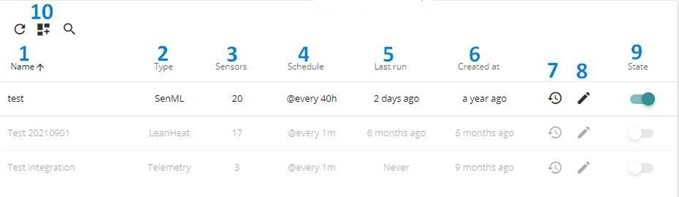
After the creation of integration, its configuration record will be shown in the INTEGRATIONS tab:
1. **Name** – shows the name of the integration configuration;
2. **Type** – shows the data send-out type or profile for the integration configuration;
3. **Sensors** – shows the number of sensors that will have their data sent out from the Aranet Cloud platform in the integration.
4. **Schedule** – shows how often data will be sent out from Aranet Cloud will happen in the integration.
5. **Last run** – shows how long ago the last data send-out happened in the integration;
6. **Created at** – shows how long ago the integration configuration was created;
7. **Integration log** – clicking on these icons will open the integration log page, where the user can see detailed information on the data send-out processes and events that have happened for the selected integration.
8. **Integration edit** - clicking on these icons will open the integration configuration window, where all existing configuration parameters for the integration can be modified and saved.
9. **State** – shows whether the data send-out of the integration is enabled or disabled;
10. **Add to Dashboard** icon allows adding integration configuration data to the dashboard.
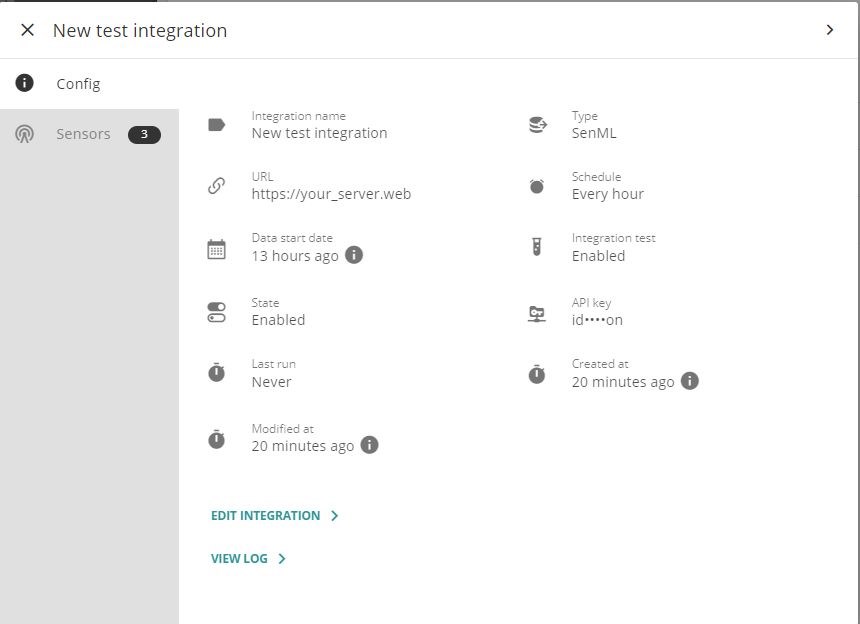
Clicking on the integration configuration record will open a new pop-up window where detailed information about the integration will be visible:
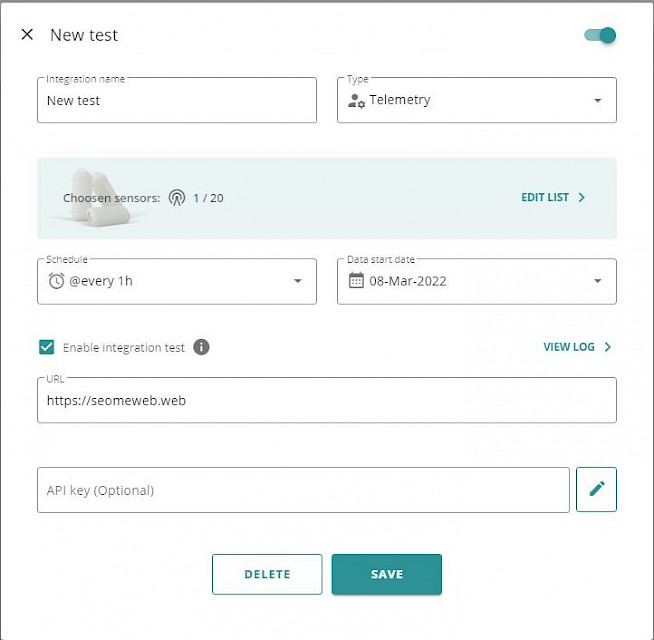
**EDIT INTEGRATION >** button opens integration configuration page. You can adjust the integration configuration or delete unneeded integrations here:
**VIEW LOG >** button opens a new window where integration events and integration test data can be accessed (see details below).
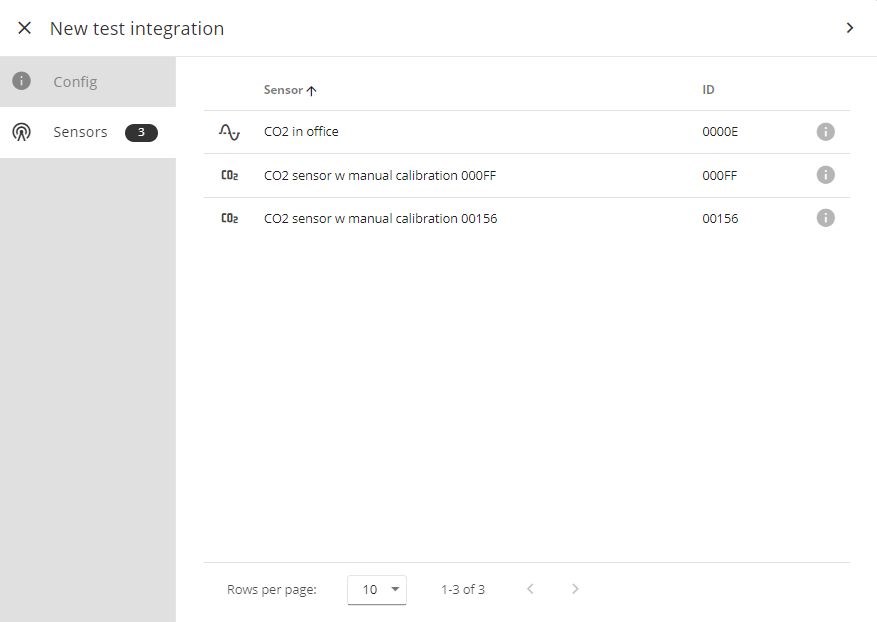
Information about sensors included in the current integration can be found under the **Sensors** tab:
#### Integration log
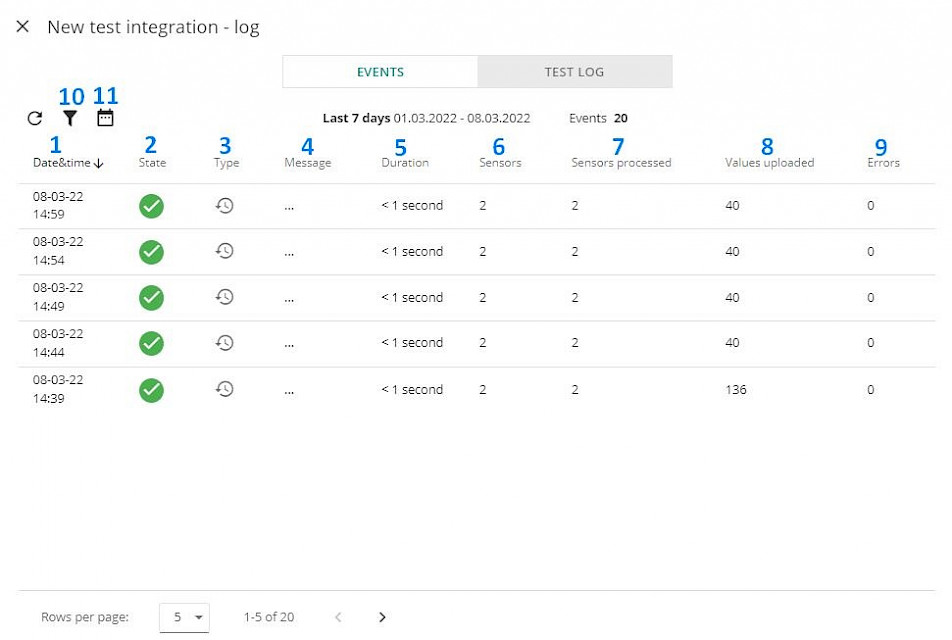
Integration logged events are shown on the **EVENTS** tab of the Integration record:
1. **Date\&Time** – integration event registration date and time;
2. **State** – was data sending successful or not;
3. **Type** – type of the event: ***Process run***, ***Schedule modified***, ***Status modified***, or ***Sensors modified***;
4. **Message** – error message sent by the recipient point if data sending was not successful;
5. **Duration** – duration of the event;
6. **Sensors** – number of sensors included in integration;
7. **Sensors processed** – number of processed sensors;
8. **Values uploaded** – number of values uploaded during the event;
9. **Errors** – number of errors registered during the event;
10. Events can be filtered by **type**
11. Or by **time.**
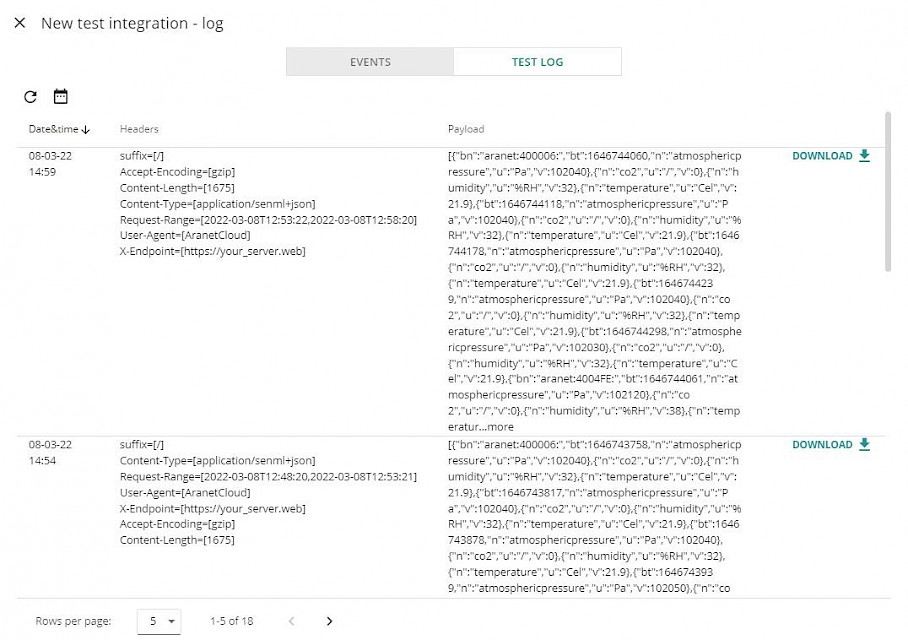
When test mode is enabled for the integration, then sensor data will not be sent to the external 3rd party system but will be gathered and saved locally in JSON file format on the Aranet Cloud workspace. These files, after test mode execution, can then be viewed and/or downloaded under **TEST LOG** tab:
Here user can see what integration data send-out messages would look like if they were sent from Aranet Cloud to the real external 3rd party system.
Pressing on **Time Filter** icon allows specifying the time interval for which integration test results should be shown. Pressing on the icon will just refresh the integration test results according to the selected time interval.
**DOWNLOAD** button allows saving the Payload data to your computer.
#### Integration test results
Here user can see the format of data that could be sent out to external 3rd party systems. Downloaded JSON files can be opened, for example, with Notepad or any Web browser. The current Aranet Cloud version allows data send-out in 2 JSON formats:
**1. SenML+JSON** for integrations with SenML and Telemetry type. SenML structure and representation in JSON format is described in [RFC8428](https://tools.ietf.org/html/rfc8428)[:](https://tools.ietf.org/html/rfc8428)
**2. 30MHz,** the file is given in JSON form
---
# Agent Instructions
This documentation is published with GitBook. GitBook is the documentation platform designed so that both humans and AI agents can read, navigate, and reason over technical content effectively. Learn more at gitbook.com.
## Querying This Documentation
If you need additional information that is not directly available in this page, you can query the documentation dynamically by asking a question.
Perform an HTTP GET request on the current page URL with the `ask` query parameter, and the optional `goal` query parameter:
```
GET https://help.aranet.com/aranet-cloud-page/aranet-cloud-landing-page/integrations-and-extensions/cloud-api/push-type-integration.md?ask=&goal=
```
`ask` is the immediate question: it should be specific, self-contained, and written in natural language.
`goal` is optional and describes the broader end goal you are ultimately trying to accomplish on behalf of the user. GitBook uses it to tailor the answer towards what is most useful for that goal.
The response will contain a direct answer to the question and relevant excerpts and sources from the documentation.
Use this mechanism when the answer is not explicitly present in the current page, you need clarification or additional context, or you want to retrieve related documentation sections.