> For the complete documentation index, see [llms.txt](https://help.aranet.com/llms.txt). Markdown versions of documentation pages are available by appending `.md` to page URLs; this page is available as [Markdown](https://help.aranet.com/aranet-cloud-page/aranet-cloud-landing-page/base-management/connection-issues.md).
# Connection Issues
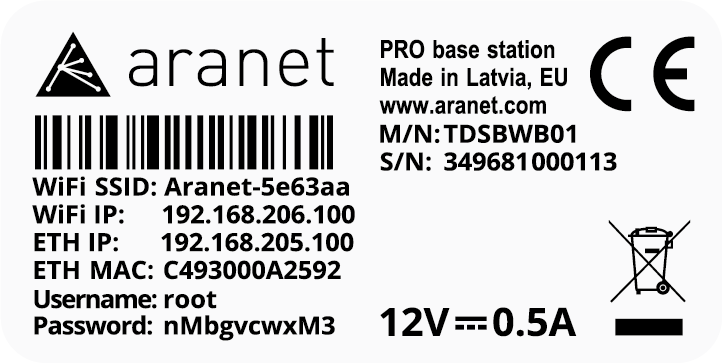
If you encounter a connection issue or have forgotten any credentials you changed to connect to the base stations' Access Point, you can reboot your base station, or reset network settings and use credentials from the base station sticker, which are located on the base station.
#### Aranet Pro Base Station
Disconnect the power cord and Ethernet cable (if connected) from the Aranet Pro base station.
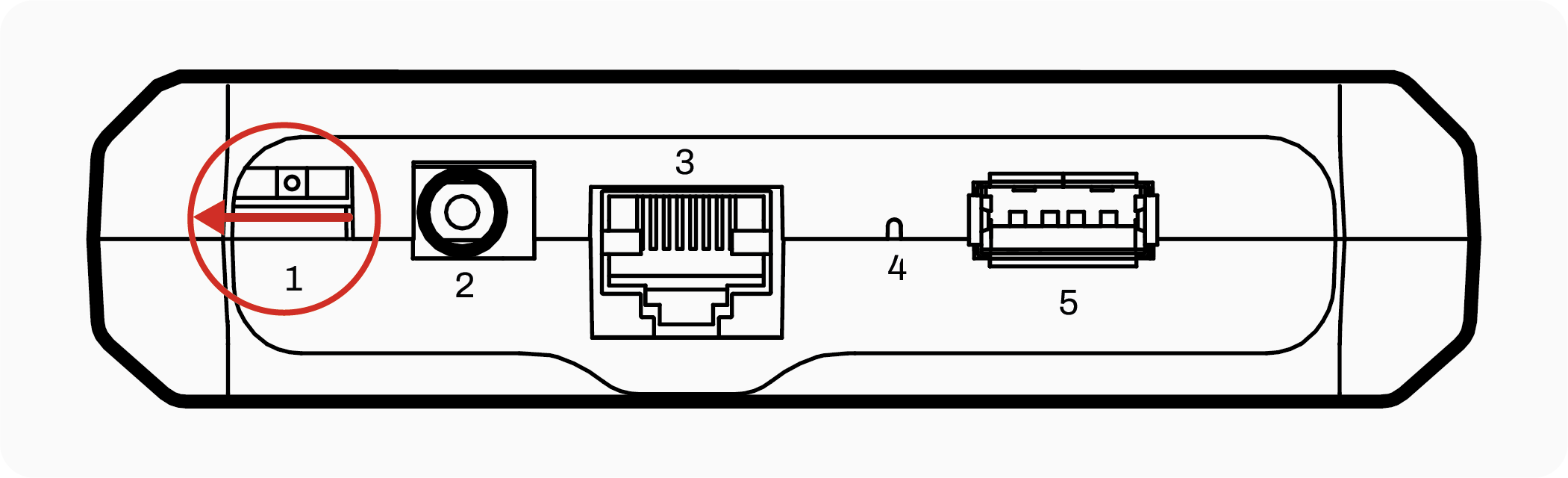
Do a physical base restart with the small jumper switch next to the AC power port on the Aranet Pro base station body. Change the position of the jumper switch to the left, wait till 12V green LED turns dark, then change the position of the switch back to the right and 12V green indication should return:
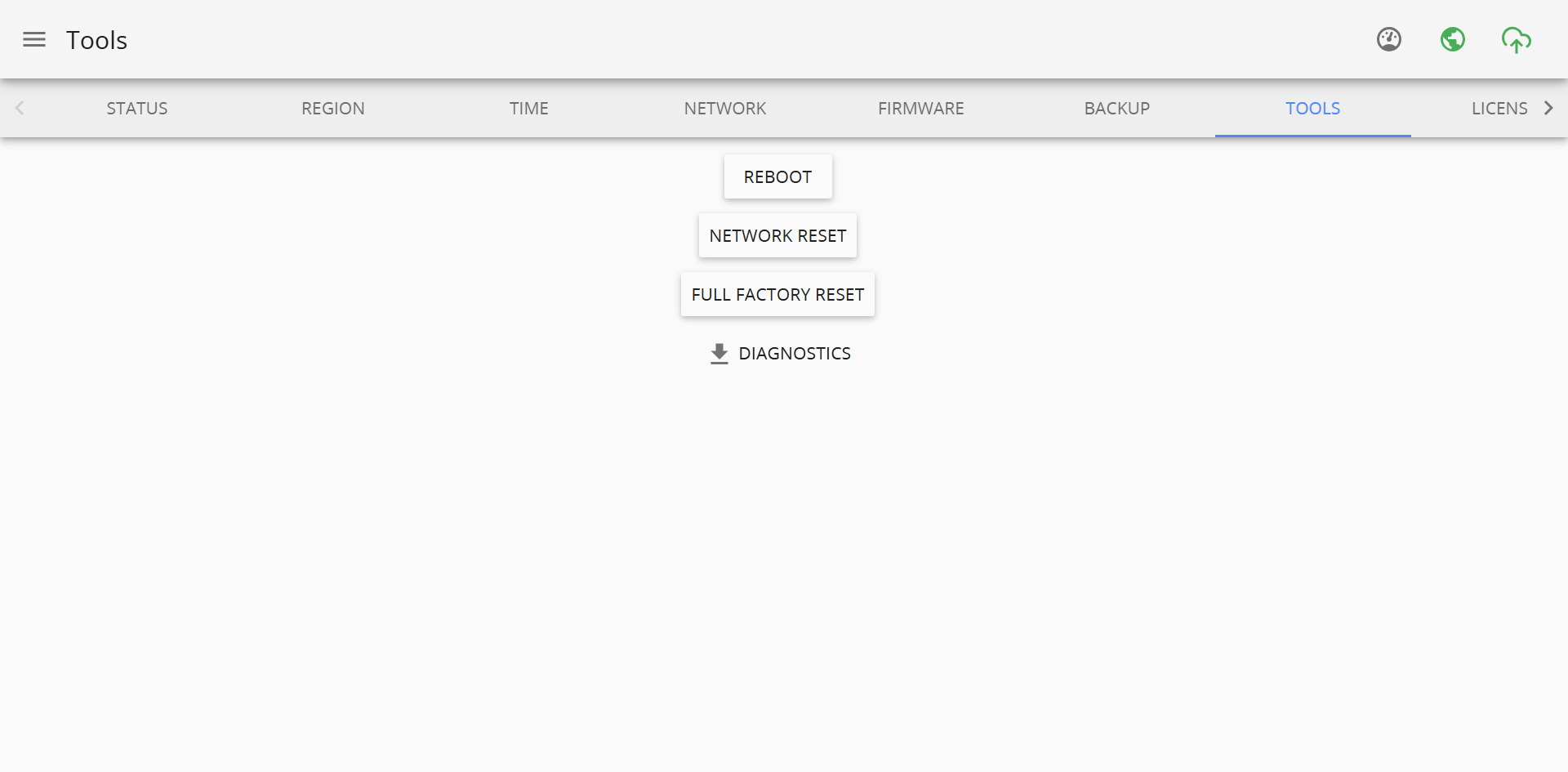
You can also reboot the device by rebooting it using WebGUI. To do so, head to System -> Tools tab, and press on Reboot:
After pressing Reboot button, following message and pop-up window will appear, type in password of the base station and press "OK", after pressing, reboot will be initiated and your device will reboot:
If the problem persists try resetting network settings for the Aranet Pro base again physically with some thin and long object pressing and holding for at least 5 seconds reset button on Pro base body, but don't turn off the device. When a reset is happening, then the LEDs of the Aranet Pro base station should flash:
If the reset has succeeded, then the WiFi access point with the name ***“Aranet-\*\*\*\*\*\*” (***created by the base station) should be visible on all devices that can be connected to WiFi (phones, tablets, laptops, etc).
Even if after the physical restart and reset of network settings, the WiFI access point created by Pro base is not visible on any Wi-Fi-capable devices, then most probably there is some hardware fault in the device, and it should be returned for repair, filling the RMA form: [RMA form](https://rma.aranet.com)
#### Aranet Pro Plus Base Station
Disconnect the power cord (RJ-45) from the Aranet Pro Plus base station.
The base station will turn off after approximately 40 seconds. All LED lights should be turned off. Then plug the power cord back into the base station. Now wait until the LED of Wi-Fi appears, then try to connect to the base station's Access Point once again.
If the problem persists, try resetting network settings for the Aranet Pro Plus base physically by taking off the transparent lid, pressing the restart button. Hold the button for at least 5 seconds to perform a successful network reset. The device should remain turned on. When a reset is happening, then the LEDs of the Aranet Pro base station should flash:
If the reset has succeeded, then the WiFi access point with the name ***“Aranet-\*\*\*\*\*\*” (***created by the base station) should be visible on all devices that can be connected to WiFi (phones, tablets, laptops, etc).
Even if after the physical restart and reset of network settings, the WiFI access point created by Pro Plus base is not visible on any Wi-Fi-capable devices, then most probably there is some hardware fault in the device, and it should be returned for repair, filling the RMA form: [RMA form](https://rma.aranet.com)
---
# Agent Instructions
This documentation is published with GitBook. GitBook is the documentation platform designed so that both humans and AI agents can read, navigate, and reason over technical content effectively. Learn more at gitbook.com.
## Querying This Documentation
If you need additional information that is not directly available in this page, you can query the documentation by asking a question.
Perform an HTTP GET request on the following URL with the `ask` and `goal` query parameters:
```
GET https://help.aranet.com/aranet-cloud-page/aranet-cloud-landing-page/base-management/connection-issues.md?ask=&goal=
```
`ask` is the immediate question: it should be specific, self-contained, and written in natural language.
`goal` is what the user is ultimately trying to achieve, the reason they need the answer. Sharing it helps GitBook give you a better, more relevant answer. A goal is most helpful when it describes the outcome the user wants rather than restating the question. For example, with `ask=how do I create an API token`, a goal like `automate deployments from our CI pipeline` lets GitBook tailor the answer to that use case.
The response will contain a direct answer to the question and relevant excerpts and sources from the documentation.
Use this mechanism when the answer is not explicitly present in the current page, you need clarification or additional context, or you want to retrieve related documentation sections.