> For the complete documentation index, see [llms.txt](https://help.aranet.com/llms.txt). Markdown versions of documentation pages are available by appending `.md` to page URLs; this page is available as [Markdown](https://help.aranet.com/aranet-cloud-page/aranet-cloud-landing-page/base-management.md).
# Base Management
With Aranet Cloud update 2.0.26 and base station Firmware update v 4.13 a new base management feature has been added: Sensor management. To access this feature the user should have "Write" permission to access this. License management is also available.\
With base station FW v4.9.9 you also have access to base station reboot and downloading of the diagnostic data.\
Go to Base stations and you should see a screen similar to this.
#### "MANAGE" functions
By pressing the MANAGE button a new pop-up screen will show up.
The following screen contains 6 buttons and
**1. Shows the name of your base station.**\
**2. Status of the connection to the base station from Cloud**. By default it is inactive (Ready to connect) and when you click on any of the following buttons, it initializes a connection. This initialization can take up to 90 seconds.
**3.** **Manage & Pair sensors**. Here you are available to manage sensors and even pair them to a base station.
**4. Integration configuration** - Not available yet
**5. License management**. The license management function shows the information about the licenses on the base station, including each license state and expiration date. Any new purchased license is available to upload to base station directly from Cloud user interface – no more license file copying onsite.
**6. Device settings.** Allows you to cahnge your base station's name, set up date, time, language and measurement units.
**7. Base firmware update**. More info here: [Firmware Update](/aranet-cloud-page/aranet-cloud-landing-page/base-management/firmware-update.md)
**8. Remote reboot** - You can trigger a reboot of the base station from here.
**And diagnostic file from the base station** - If support asks to download the diagnostic file, then if the base station is online, this can be done from here.
#### **Sensor pairing and management**
When you have established a connection and entered the sensor management page you should see this page:
As in the base station GUI, here too, you can pair and manage the sensors in the same way.
**1. Measurement interval.** Select the measurement interval you want.
**2. Pair sensor button.** Starts the pairing process
**3. Search bar.** You can search by name and sensor ID.
**4. Sensors.** Here you can see some info about the sensors, such as the name, ID, picture, and pairing time.
**5. Edit button.** Clicking this will allow you to edit the sensor settings.
#### Sensor pairing process
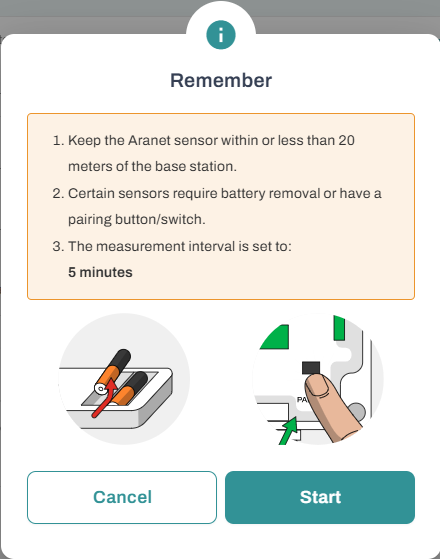
To pair a new sensor or re-pair a sensor with a new measurement interval you should press the "Pair sensor" button and a new window will appear:
After you click "start" this screen will be shown.
The warning shows how to pair the sensors; the same basic principles that apply to pairing with the base station as here.\
1\. Make sure you are within 20 meters of the base station.\
2\. Remove the batteries for \~20 seconds, then add them back in, or press the pair button on the sensor.\
3\. You have 2 minutes to pair a sensor this way.
Through the Aranet Cloud, only single-sensor pairing is possible. After the pairing, the session will end and you will have to press the pair button again to pair another sensor.
#### Sensor management
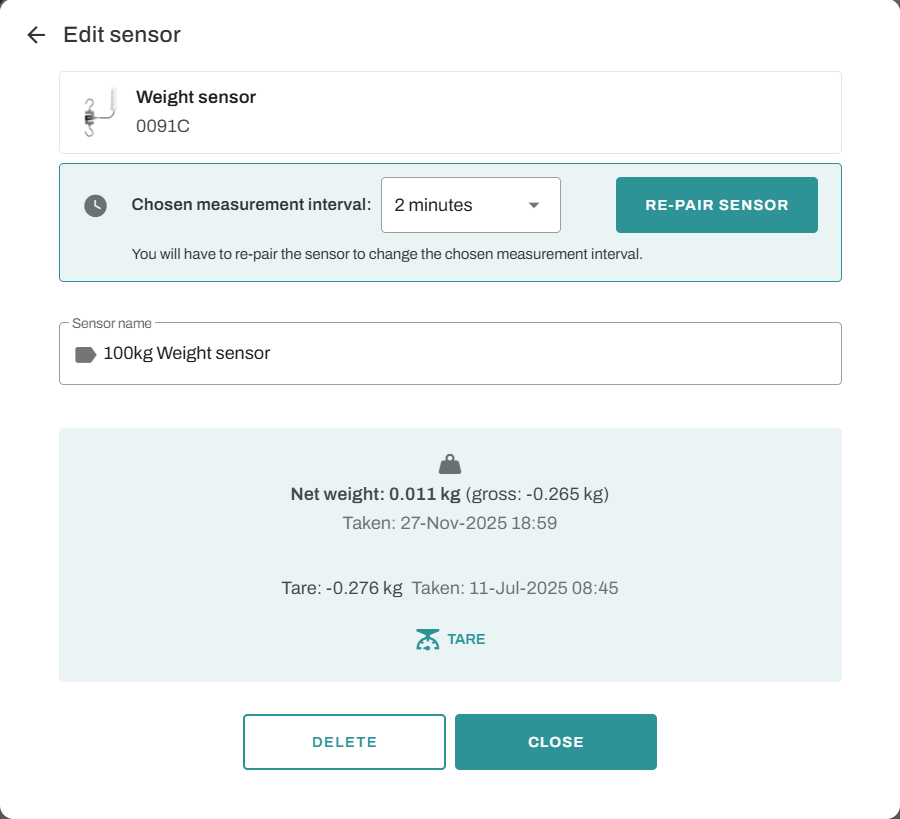
When you've clicked to edit a sensor, this screen will open:
From here you can change the measurement interval, and name and even add a conversion.
For more advanced sensor management take a look at these pages:
[Pulse Counter (Energy meter) management](/aranet-cloud-page/aranet-cloud-landing-page/user-interface-and-core-features/sensors/sensor-management-using-cloud.md)
[WET150 VWC management](/aranet-cloud-page/aranet-cloud-landing-page/user-interface-and-core-features/sensors/sensor-management-using-cloud.md)
[4-20mA, 0-10 V sensor management](/aranet-cloud-page/aranet-cloud-landing-page/user-interface-and-core-features/sensors/sensor-management-using-cloud.md)
For the weight sensor another button appears, the Tare button allows you to Tare the weight that is on the sensor.
#### **License management**
This screen will greet you when you open the license management screen. A list of "Ready for upload" and "Uploaded" licenses will be available as well as a "Sync" button that will sync and sanitize unavailable licenses on the base station.
---
# Agent Instructions
This documentation is published with GitBook. GitBook is the documentation platform designed so that both humans and AI agents can read, navigate, and reason over technical content effectively. Learn more at gitbook.com.
## Querying This Documentation
If you need additional information that is not directly available in this page, you can query the documentation dynamically by asking a question.
Perform an HTTP GET request on the current page URL with the `ask` query parameter, and the optional `goal` query parameter:
```
GET https://help.aranet.com/aranet-cloud-page/aranet-cloud-landing-page/base-management.md?ask=&goal=
```
`ask` is the immediate question: it should be specific, self-contained, and written in natural language.
`goal` is optional and describes the broader end goal you are ultimately trying to accomplish on behalf of the user. GitBook uses it to tailor the answer towards what is most useful for that goal.
The response will contain a direct answer to the question and relevant excerpts and sources from the documentation.
Use this mechanism when the answer is not explicitly present in the current page, you need clarification or additional context, or you want to retrieve related documentation sections.